Engineers and developers constantly seek efficient models that deliver high performance without excessive resource demands. GLM-4.7-Flash emerges as a compelling option in this landscape. This 30B-A3B Mixture-of-Experts (MoE) model, developed by Zhipu AI (Z.ai), stands out for its balance of strength and efficiency. It excels in coding benchmarks, reasoning tasks, and tool integration, making it suitable for local deployment scenarios.
Running GLM-4.7-Flash locally empowers users to maintain data privacy, reduce latency, and customize integrations. Tools like Ollama, LM Studio, and Hugging Face simplify this process.
As you proceed through this guide, you will gain practical insights into installation and usage. First, consider the system's foundational requirements.
What Is GLM-4.7-Flash and Why Use It Locally?
GLM-4.7-Flash represents an advancement in open-source language models. Built on the glm4_moe_lite architecture, it uses BF16 and F32 tensor types under an MIT license. The model's paper, "GLM-4.5: Agentic, Reasoning, and Coding (ARC) Foundation Models," details its training for tool use and reasoning, drawing from arXiv:2508.06471.
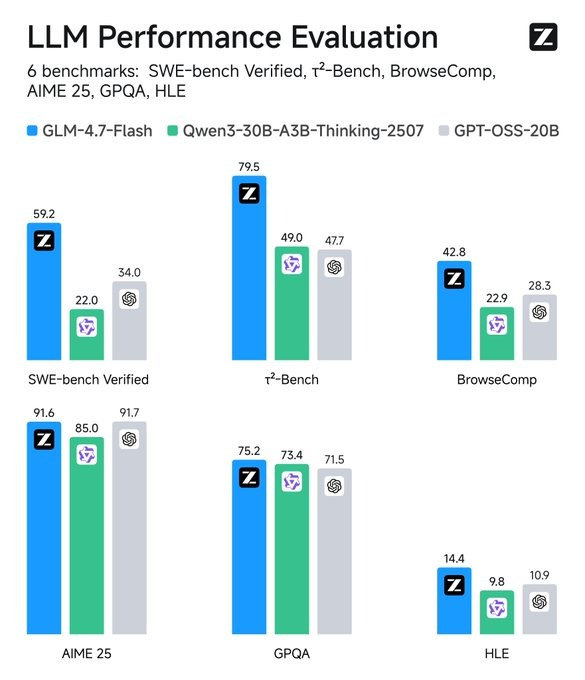
Key features include support for English and Chinese, text generation, and conversational tasks. It handles multimodal inputs as text but focuses on text-only outputs. Limitations arise from its scale—while efficient, it may not match larger models in niche domains without fine-tuning. Training data details remain undisclosed, but evaluations confirm its edge in coding and agentic scenarios.
Users opt for local runs to avoid API costs. Z.ai offers a free tier for GLM-4.7-Flash via their platform, but local deployment eliminates dependency on external services. This approach suits developers building custom applications, researchers testing hypotheses, or enterprises prioritizing security. For instance, you control quantization levels to fit hardware constraints, ensuring optimal performance.
System Requirements for Running GLM-4.7-Flash Locally
Hardware plays a crucial role in model inference. GLM-4.7-Flash demands at least 16 GB of system memory for basic operations, as specified in LM Studio guidelines. However, GPU acceleration significantly enhances speed.
For Ollama variants:
- q4_K_M: 19 GB VRAM
- q8_0: 32 GB VRAM
- bf16: 60 GB VRAM
Hugging Face recommends torch.bfloat16 for efficiency, requiring compatible NVIDIA GPUs (Ampere or later architectures). CPU-only inference works but slows down considerably for large contexts.
Software prerequisites include Python 3.8+, pip, and Git. Frameworks like Transformers necessitate additional installations. Ensure your OS supports CUDA for GPU use—Ubuntu 20.04 or Windows with WSL2 performs well.
If resources fall short, quantization reduces memory footprint. Tools like llama.cpp or Unsloth offer 4-bit or 2-bit versions, dropping requirements to 15-20 GB VRAM. This flexibility allows deployment on consumer hardware like RTX 4090.
With requirements met, explore installation methods. Start with Ollama for its simplicity.
How to Install and Use GLM-4.7-Flash with Ollama
Ollama provides an accessible platform for running large models locally. It manages quantization and API serving automatically.
First, install Ollama. Download the executable for your OS and run it.

Verify installation with ollama --version, ensuring version 0.14.3 or later, as GLM-4.7-Flash requires it.

Next, pull the model: execute ollama pull glm-4.7-flash.

Choose variants like glm-4.7-flash:q4_K_M for lower memory use. The command downloads approximately 19 GB for the q4 version.
Run the model interactively: type ollama run glm-4.7-flash. Input prompts like "Generate Python code for a Fibonacci sequence." The model responds with reasoned outputs, leveraging its coding strengths.
For programmatic access, use the API. Send a curl request:
curl http://localhost:11434/api/chat -d '{
  "model": "glm-4.7-flash",
  "messages": [{"role": "user", "content": "Explain quantum computing basics."}]
}'
This returns JSON with the response. In Python, integrate with the ollama library:
from ollama import chat
response = chat(
    model='glm-4.7-flash',
    messages=[{'role': 'user', 'content': 'Solve this math problem: 2x + 3 = 7'}]
)
print(response['message']['content'])
JavaScript follows similarly with the ollama npm package.
Customize configurations by editing Modelfile. Set temperature to 0.7 for deterministic outputs in coding tasks. Ollama's latest mode fetches recent posts if needed, but focus on local inference here.
This method suits quick setups. However, for a graphical interface, turn to LM Studio.
Setting Up GLM-4.7-Flash in LM Studio
LM Studio offers a user-friendly GUI for model management. Download it and install.
Search for "zai-org/glm-4.7-flash" in the model hub. Select a quantized version—MLX-4bit, 6bit, or 8bit—from linked Hugging Face repos. Download completes in the app.
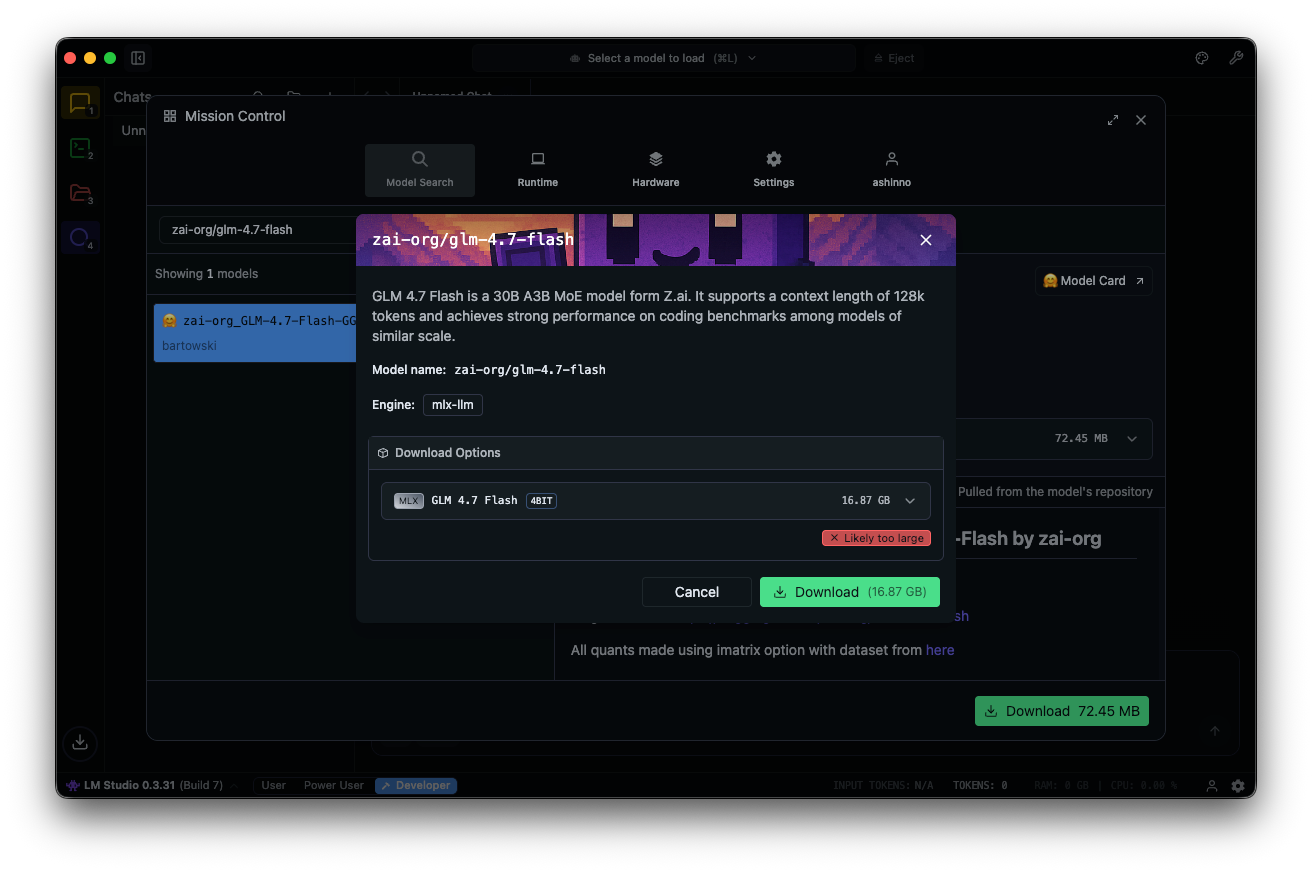
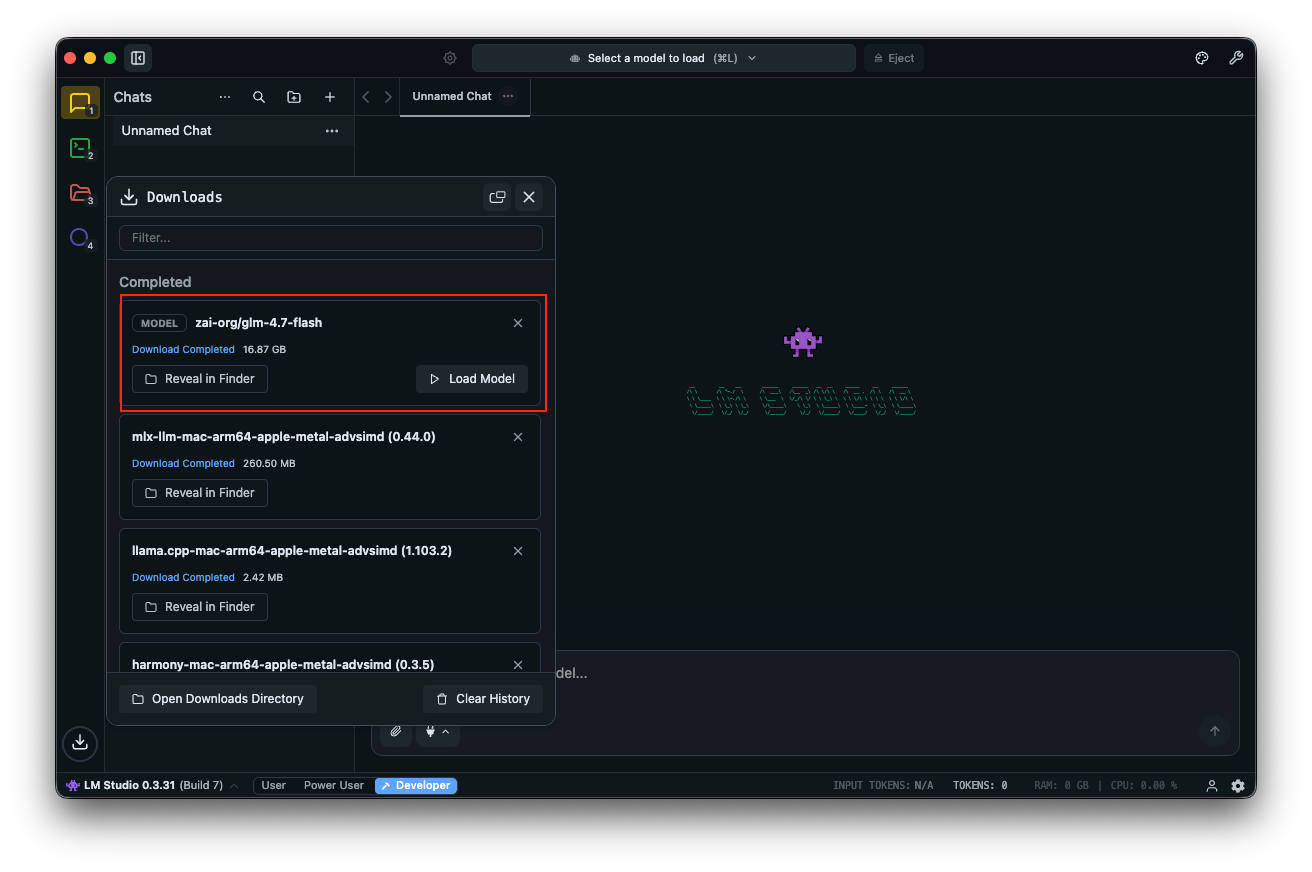
Load the model: navigate to the chat interface, select GLM-4.7-Flash, and adjust parameters. Enable thinking (default: true) for step-by-step reasoning. Set temperature to 1, top_k to 50, top_p to 0.95, and disable repeat penalty.
Test with prompts: "Design a REST API for user authentication." LM Studio displays outputs with token speeds, aiding performance tuning.
Custom fields like clear_thinking (default: false) manage history. For MoE models, monitor active experts—A3B means three active per forward pass, optimizing efficiency.
LM Studio supports deeplinks for direct model access. If issues arise, check system memory—16 GB minimum prevents crashes.
This tool excels for experimentation. For advanced scripting, integrate with Hugging Face.
Using GLM-4.7-Flash with Hugging Face Transformers
Hugging Face provides robust libraries for fine-grained control. Install Transformers from the main branch:
pip install git+https://github.com/huggingface/transformers.git
Load the model:
import torch
from transformers import AutoModelForCausalLM, AutoTokenizer

MODEL_PATH = "zai-org/GLM-4.7-Flash"
tokenizer = AutoTokenizer.from_pretrained(MODEL_PATH)
model = AutoModelForCausalLM.from_pretrained(
    MODEL_PATH,
    torch_dtype=torch.bfloat16,
    device_map="auto"
)
Prepare inputs:
messages = [{"role": "user", "content": "Write a function to sort an array."}]
inputs = tokenizer.apply_chat_template(
    messages,
    tokenize=True,
    add_generation_prompt=True,
    return_dict=True,
    return_tensors="pt"
)
inputs = inputs.to(model.device)
Generate:
generated_ids = model.generate(**inputs, max_new_tokens=512, do_sample=False)
output = tokenizer.decode(generated_ids[0][inputs['input_ids'].shape[1]:])
print(output)
This setup supports quantization via bitsandbytes for lower VRAM. Add load_in_4bit=True in model loading.
For serving, use vLLM or SGLang. Install vLLM:
pip install -U vllm --pre --index-url https://pypi.org/simple --extra-index-url https://wheels.vllm.ai/nightly
Run a server:
python -m vllm.entrypoints.openai.api_server --model zai-org/GLM-4.7-Flash
Access via OpenAI-compatible endpoints. SGLang requires source installation and follows similar steps.
These frameworks enable production-grade deployments. Now, consider API testing with Apidog.
Integrating Apidog for API Testing with Local GLM-4.7-Flash
Once you serve GLM-4.7-Flash via Ollama or vLLM, test endpoints efficiently. Apidog, an all-in-one API platform, facilitates this.
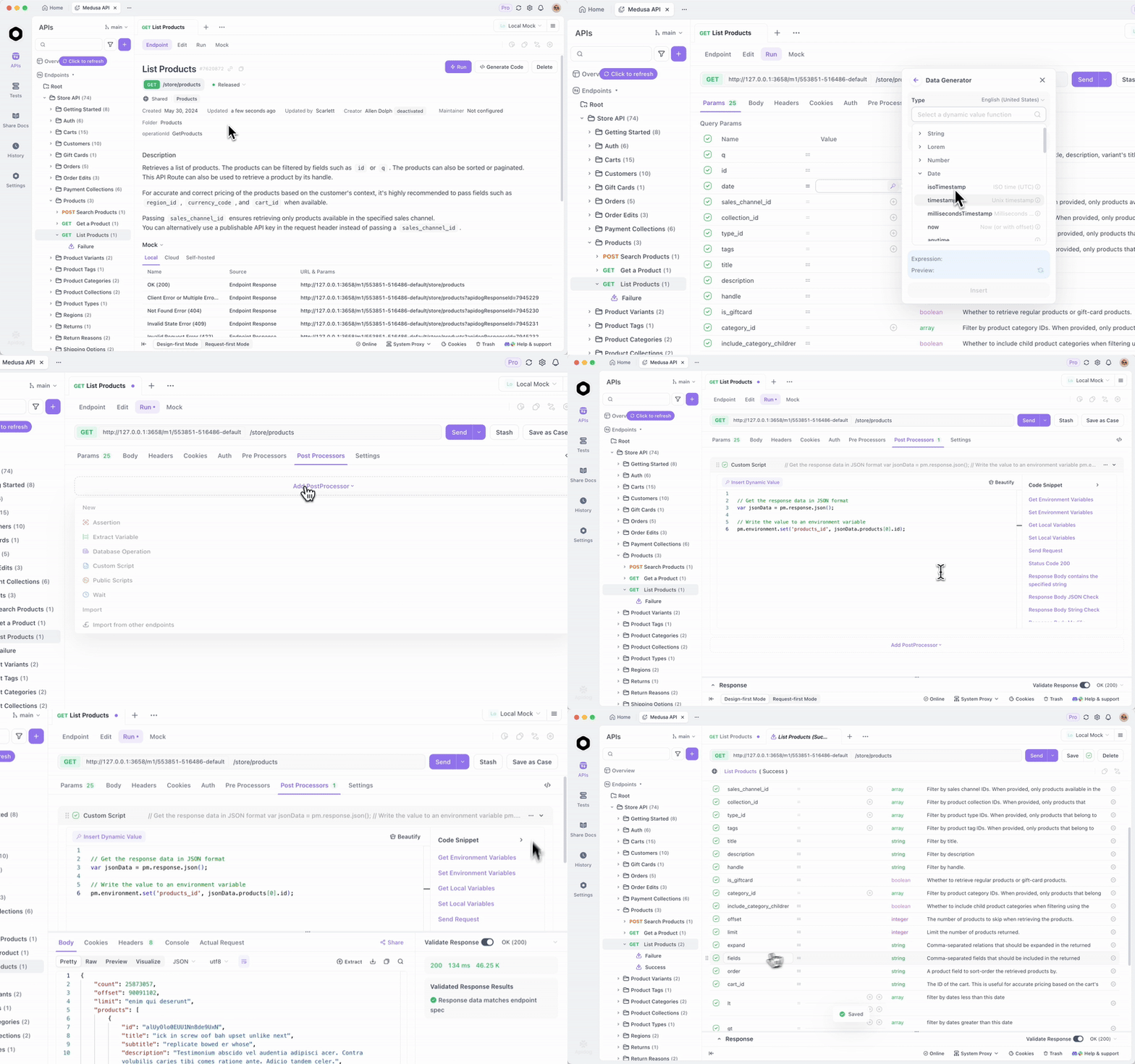
Download Apidog for free. It supports AI features by configuring your local model as a provider—use API keys if applicable, or direct endpoints.
Apidog's MCP Server integrates with IDEs like Cursor, using API specs for code generation. This ties back to GLM-4.7-Flash's coding capabilities—test agentic outputs directly.
For example, query your local server and validate responses. This ensures reliability in applications.
Building on basics, advance to optimization.
Advanced Tips for Optimizing GLM-4.7-Flash Performance
Fine-tune parameters for tasks. Set temperature to 0.7 for coding, 1.0 for creative writing. Use top_p 0.95 to balance diversity.
Quantize further with GGUF formats via llama.cpp. Compile llama.cpp with CUDA, then convert:
./llama-gguf-split --model GLM-4.7-Flash.gguf
Run with --jinja for template support.
Handle long contexts: Split inputs if exceeding 128K. Enable thinking for complex queries.
Monitor metrics: Tools like TensorBoard track latency. Compare with baselines—GLM-4.7-Flash beats peers in SWE-bench by 37.2 points.
Integrate tools: Add function calling in prompts for agentic behavior.
Security: Run in isolated environments to prevent data leaks.
These strategies maximize utility. Reflect on applications next.
Troubleshooting Common Issues
Encounter out-of-memory errors? Reduce batch size or quantize lower.
Slow inference? Upgrade GPU or use faster frameworks like vLLM.
Compatibility problems? Update Transformers to main.
If Ollama fails, check port 11434 availability.
LM Studio crashes? Verify model integrity.
Address these proactively.
Conclusion: Empower Your Workflow with GLM-4.7-Flash
Running GLM-4.7-Flash locally unlocks powerful AI capabilities. From Ollama's ease to Hugging Face's flexibility, options abound. Incorporate Apidog for seamless API management—download it free to elevate your setup.
As technology evolves, models like this bridge performance and accessibility. Implement these steps, and you achieve efficient, private AI deployments. Small adjustments in parameters or tools yield significant improvements, transforming routine tasks into streamlined processes.