TL;DR: Cursor 3 launched on April 2, 2026, replacing the IDE-first interface with an agent-first workspace. For API developers, the biggest shifts are parallel agent execution, richer MCP tool outputs, and a cloud-to-local handoff that keeps your workflows running without interruption. If you pair Cursor 3 with Apidog's MCP Server, your AI agents can read your live API specs and generate accurate, schema-aware code without any copy-pasting.
The shift you probably felt coming
AI code editors have been getting smarter for two years. But Cursor 3 isn't an incremental update. It's a redesign of what an AI development environment looks like at its core.
Before Cursor 3, you still worked mostly like a traditional IDE user. You opened a file, asked an agent to help, reviewed the diff, and moved on. Agents were assistants you called on demand.
Cursor 3 flips that. Agents are now the primary unit of work. You manage them like tabs in a browser: launch several, let them run in parallel, check their outputs, and promote the best one.
For API developers, this matters more than it does for most. API work is coordination-heavy. You're writing endpoints, testing contracts, updating docs, and chasing down schema mismatches. These tasks run in parallel in any real project. Now your tooling can match that reality.
This article walks through what changed in Cursor 3, what it means day-to-day for API work, and a specific workflow that ties Cursor 3 to Apidog's MCP Server.
What's new in Cursor 3
Cursor 3 shipped on April 2, 2026. The headline feature is a new interface called the Agents Window. But several other changes matter specifically to developers who work with APIs.
Agents Window
The Agents Window replaces the editor-centric layout with an agent-centric one. You can run agents across multiple repos simultaneously, whether they're running locally, in git worktrees, in Cursor's cloud environment, or on a remote SSH machine.
You access it with Cmd+Shift+P -> Agents Window. You can keep the IDE open alongside it, or switch between them. Nothing you had before disappears; it's additive.
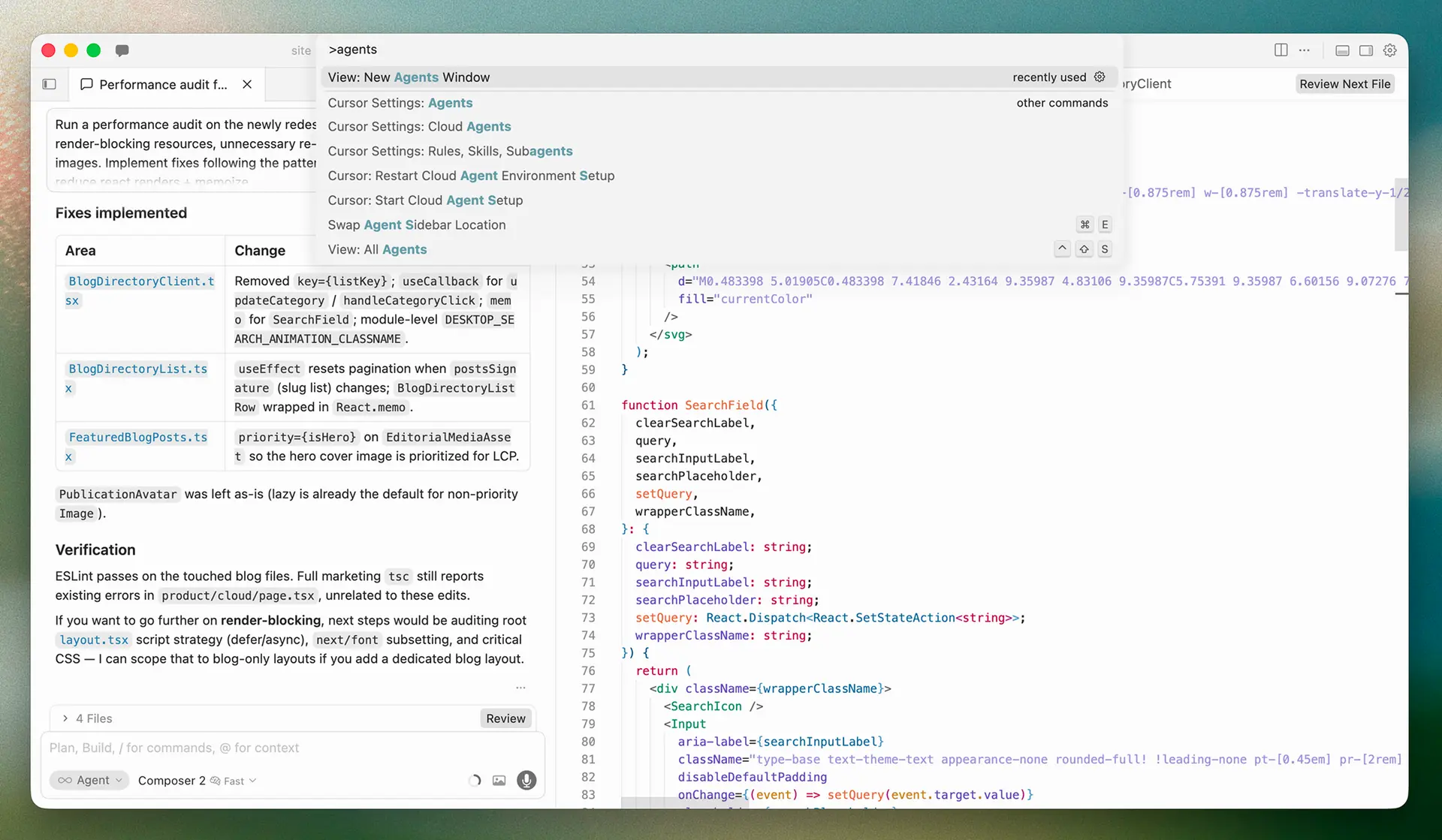
The practical effect: you can kick off an agent to scaffold a new API endpoint in one repo while another agent is fixing a bug in a shared library. You watch both. You intervene when needed. You approve diffs when they're ready.
Design Mode
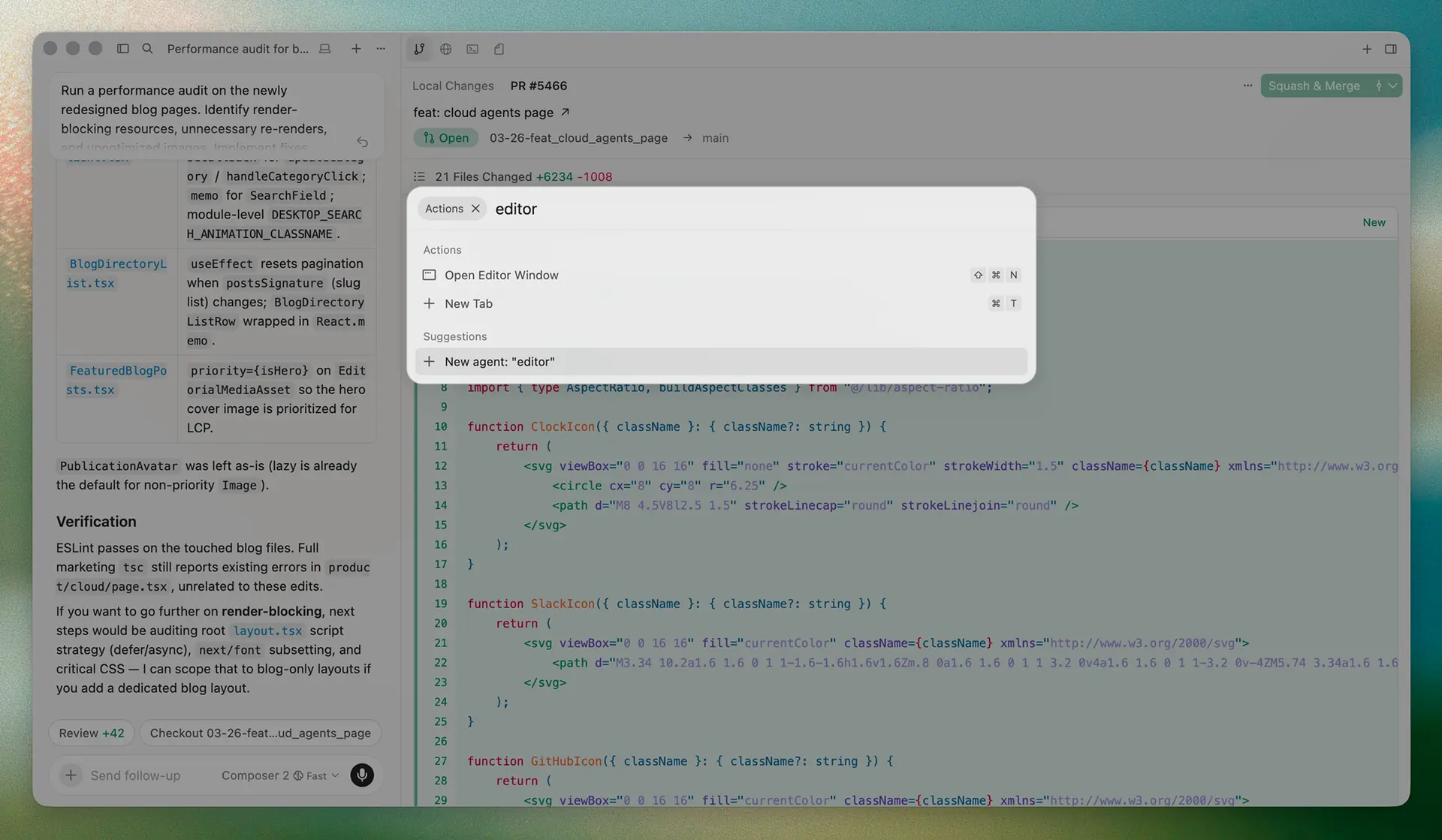
Inside the Agents Window, Design Mode lets you annotate browser UI directly. You select elements, highlight areas, and add them to the agent's context without writing descriptions. For API developers building or testing web frontends against their APIs, this cuts down on the "the button in the top-right corner" style of instructions.
Shortcuts: Cmd+Shift+D to toggle, Shift+drag to select an area, Cmd+L to add an element to chat.
MCP Apps: structured content output
This one is quiet but significant. In Cursor 3, MCP Apps now support structured content in tool outputs. Previously, tool outputs from MCP servers came back as flat text. Now they can return rich, structured data.
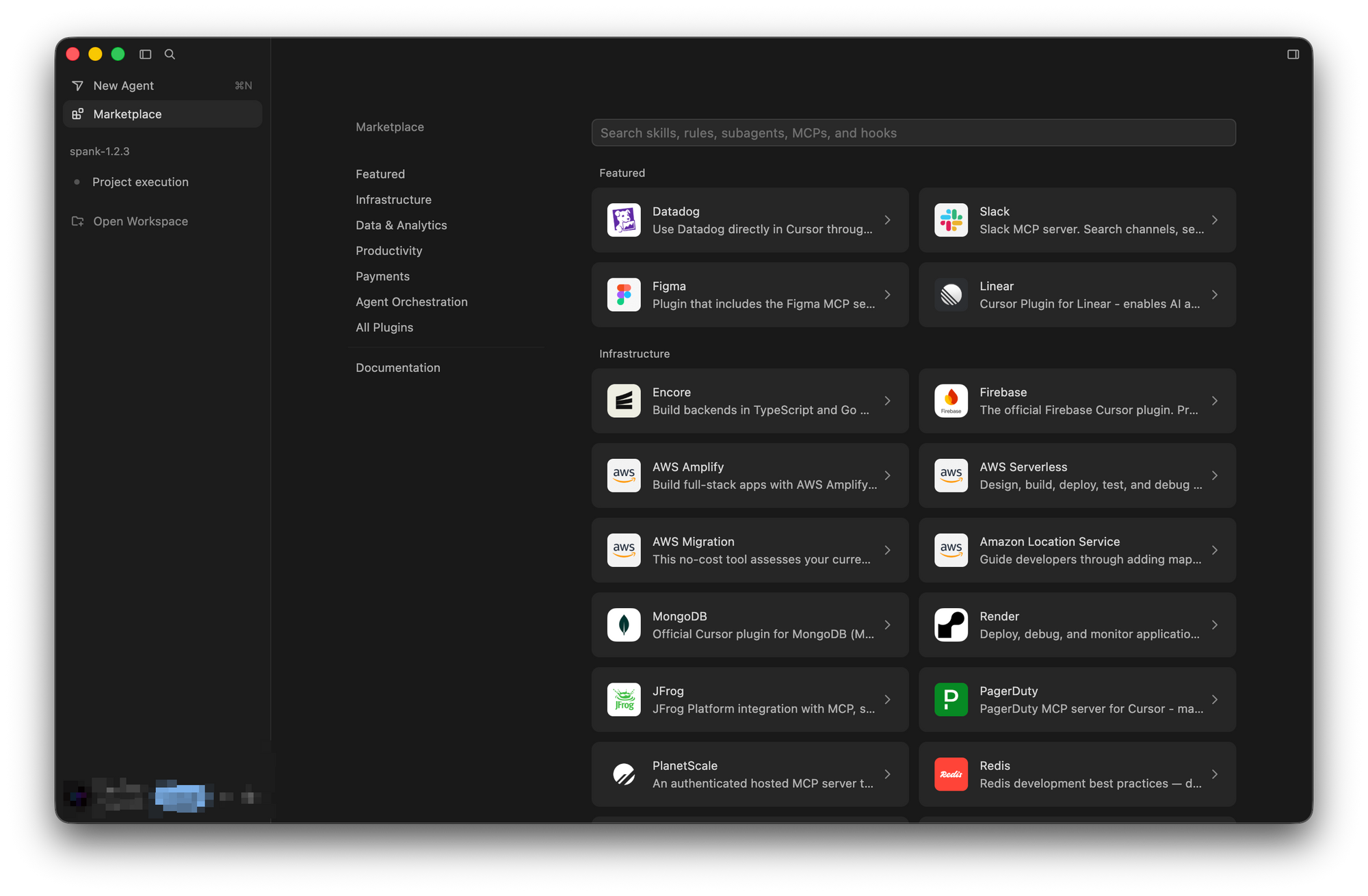
For Apidog's MCP Server, this means responses from your API project (endpoint definitions, schema data, test results) can come back in a format Cursor's agents parse correctly. The agent gets clean data, not a block of text it has to interpret.
Worktrees, best-of-n, and isolation
Cursor 3 introduces two new commands: /worktree and /best-of-n.
/worktree creates an isolated git worktree. Changes in that branch don't affect your working directory. You can test destructive changes, scaffold new modules, or explore alternative implementations without risk.
/best-of-n runs the same task in parallel across multiple models, each in its own worktree, then lets you compare the results. For API developers, this is useful when you want to see how Claude, GPT-4o, and Gemini each approach a tricky endpoint implementation. You pick the winner.
Cloud-to-local handoff
Agents can now move between cloud and local environments. Start a long-running task in Cursor's cloud, then pull it down to your local machine to test it against your actual services. Or push a session to the cloud before you close your laptop, so it keeps running overnight.
What it means for API development
API development has always involved more context-switching than most other coding work. You toggle between your spec, your client (Apidog ), your code editor, your terminal, and your documentation tool. Each tool knows one slice of your project.
Cursor 3 starts to address this by making agents persistent and parallel, but the deeper improvement for API work comes from the MCP layer it sits on.
Parallel endpoint development
If you're building a REST API with ten endpoints, you no longer need to scaffold them sequentially. You can describe each endpoint's purpose to a separate agent instance and let all ten run. Review the outputs, merge the ones that pass your checks, and discard the others.
This doesn't eliminate review time. It compresses the time between "I need these endpoints" and "I have a working draft to review." For teams shipping under sprint pressure, that compression matters.
Schema-aware code generation
When an agent doesn't have access to your OpenAPI spec, it guesses. It might get field names right. It probably won't get nested object structures, required fields, or enum values exactly right on the first try.
When you connect your Apidog project to Cursor via the MCP Server, the agent pulls the actual schema. It knows that your POST /orders endpoint requires a customerId string and an items array with specific productId and quantity fields. Generated code reflects that. Fewer corrections.
Contract testing inside the editor
Cursor 3's agents can run terminal commands as part of their workflow. Combine that with the Apidog CLI, and you have a path to automated contract validation inside the editor loop [internal: apidog cli ci cd integration].
You describe the endpoint behavior in plain language. The agent generates the implementation. It runs apidog run --scenario <test-id> against your locally mocked server. If the test fails, the agent sees the output and iterates. You watch it work.
This is closer to "AI pair programmer who also writes and runs the tests" than anything available in previous Cursor versions.
Documentation that stays current
One of the persistent problems in API development is documentation drift. Endpoints change; documentation doesn't. Cursor 3's agents can read your Apidog docs via the MCP Server and flag discrepancies between your code and your spec as part of their review loop.
That's not automatic. You still need to configure the workflow. But the building blocks are there in a way they weren't before.
What hasn't changed
Cursor 3 doesn't test your APIs for you automatically. It doesn't catch auth misconfigurations or validate that your rate limiting logic works under load. It's an agent interface, not a QA platform. You still need proper tooling for those concerns [internal: api testing strategies].
The structured output improvement in MCP is also version-dependent. Your MCP server needs to support structured content for the richer outputs to work. Apidog's MCP Server does; others may not yet.
Cursor 3 + Apidog MCP Server: a specific workflow
Here's a concrete workflow that uses Cursor 3's new features alongside Apidog's MCP Server. This isn't a generic "use AI to write code" walkthrough. It's specific to how the two tools interact.
The setup
You connect the Apidog MCP Server to Cursor. The server exposes your Apidog project's endpoints, schemas, environments, and test scenarios as tools Cursor's agents can call. In Cursor's MCP settings, you add:
{
  "mcpServers": {
    "apidog": {
      "command": "npx",
      "args": ["-y", "@apidog/mcp-server@latest"],
      "env": {
        "APIDOG_ACCESS_TOKEN": "your_access_token"
      }
    }
  }
}
Your access token comes from Apidog under Account Settings > API Access Token. Once connected, Cursor's agents can call tools like get_endpoint_detail, list_endpoints, and get_schema against your live project.
The workflow: scaffold a new endpoint from spec
Say you've added a new endpoint to your Apidog spec: POST /invoices. You've defined the request body, the response schema, and linked a test scenario. Now you need to write the implementation.
In the Agents Window, you open a new agent session and describe the task:
"Look up the POST /invoices endpoint in the Apidog project. Read its request and response schemas. Generate a Node.js/Express handler that matches the spec. Then run the test scenario to verify it."
The agent:
- Calls
get_endpoint_detailvia the MCP Server to fetch the spec. - Generates the handler code based on actual schema definitions.
- Runs
apidog run --scenario invoice-creation-test --env stagingin the terminal. - Reviews the test output and patches the handler if assertions fail.
You review the final diff. The code already matches your spec because the agent read the spec directly, not a description you wrote by hand.
The /best-of-n advantage for complex endpoints
For endpoints with complex business logic, use /best-of-n. Let three agents each generate an implementation, each reading the same Apidog spec via MCP. Compare the implementations in Cursor's worktree view. Pick the approach with the best error handling or the cleanest separation of concerns.
This is where structured MCP output pays off. Each agent gets the same structured schema data. The difference in output comes from the model's reasoning, not from differences in how each model parsed a text blob.
Keeping docs in sync
After you ship the endpoint, run a second agent pass:
"Check the Apidog documentation for POST /invoices. Compare it against the code in invoices.js. Flag any discrepancies. If the response shape in code differs from the spec, update the Apidog spec to match."
The agent reads both sources via MCP, compares them, and proposes spec updates or code corrections. You approve or reject. Documentation drift becomes a step in the review cycle, not an afterthought.
You can read more about how this connects to Apidog's [internal: apidog mcp server overview] and how the CLI fits into automated pipelines [internal: apidog cli getting started].
Practical setup: getting started
Here's what you need to start using Cursor 3 with Apidog's MCP Server.
Step 1: upgrade Cursor
Download the latest version from cursor.com. After installing, open the command palette (Cmd+Shift+P) and select "Agents Window" to confirm you're running Cursor 3.
Step 2: generate an Apidog access token
Log into Apidog. Go to Account Settings > API Access Token. Generate a new token with read access to the projects you want to expose. Copy the token; you'll need it in the next step.
Step 3: add the Apidog MCP Server to Cursor
Open Cursor Settings > MCP. Add a new server configuration:
{
  "mcpServers": {
    "apidog": {
      "command": "npx",
      "args": ["-y", "@apidog/mcp-server@latest"],
      "env": {
        "APIDOG_ACCESS_TOKEN": "your_token_here",
        "APIDOG_PROJECT_ID": "your_project_id"
      }
    }
  }
}
Your project ID appears in the Apidog URL when you open a project. Save and restart Cursor.
Step 4: verify the connection
Open the Agents Window. Start a new session and type: "List the endpoints in my Apidog project." If the agent returns a list of your endpoints, the connection works.
Step 5: install and configure the Apidog CLI
For the test-execution part of the workflow, install the Apidog CLI:
npm install -g apidog-cli
Verify with apidog -v. Inside Apidog, open any test scenario and go to the CI/CD tab. Copy the pre-generated CLI command, which includes your project credentials and scenario ID. You can run that command directly from Cursor's integrated terminal, or have an agent run it as part of its workflow [internal: apidog test scenarios automated runs].
Step 6: run your first MCP-powered agent task
In the Agents Window, describe a real task that requires spec knowledge. Something like: "Look up the schema for the User object in Apidog. Generate a TypeScript interface that matches it exactly." Review the output against your actual schema. If it's accurate, the integration is working correctly.
From here, you can build more complex workflows that combine spec reading, code generation, and test execution into a single agent session.
Wrapping up
Cursor 3 is a significant change to how you work with AI in a development environment. The shift from editor-centric to agent-centric design lines up with where API development is heading. You're not writing one function at a time. You're orchestrating work across multiple endpoints, services, and environments.
The structured MCP output improvement is understated in the changelog, but it's one of the most useful changes for API developers. When agents receive clean, typed data from your API tooling, the code they generate is better. Fewer corrections, less back-and-forth.
Pairing Cursor 3 with Apidog's MCP Server and CLI gives you a workflow where the AI agent genuinely knows your API. It reads your spec, generates code that matches it, and runs your test scenarios to verify. That's not a demo scenario. It's a loop you can use every day.
Frequently asked questions
Does Cursor 3 replace the existing IDE interface?
No. Cursor 3 adds the Agents Window as a new interface. You can switch back to the IDE at any time, or keep both open simultaneously. Nothing from the previous version is removed.
What's the difference between Cursor 3 and Cursor's previous version?
The core difference is architectural. Previous versions centered on the editor with agents as a sidebar feature. Cursor 3 centers on agents, with the editor available when you need to dig into specific files. The new Agents Window also adds parallel execution, cloud-to-local handoff, Design Mode, and the /worktree and /best-of-n commands.
How does the Apidog MCP Server connect to Cursor 3?
You add the Apidog MCP Server as an MCP configuration in Cursor Settings. The server exposes your Apidog project's API data as callable tools. Cursor's agents use those tools to read endpoint specs, schemas, and test scenarios without you needing to copy any content manually. Structured content support in Cursor 3 means agents receive that data in a typed format, not plain text.
Can Cursor 3 agents run Apidog test scenarios automatically?
Yes, via the Apidog CLI. Agents can execute terminal commands as part of their workflow. If you configure the CLI and provide the right scenario command, agents can run your test scenarios, read the output, and adjust their code based on failures. This creates a tight feedback loop between code generation and API contract validation.
Do I need a paid Cursor plan to use the Agents Window?
The Agents Window is available in Cursor 3 across plans, but cloud agent execution (the feature that lets agents keep running while you're offline) requires a paid subscription. Local agent execution works on the free tier. Check cursor.com/pricing for current plan details.