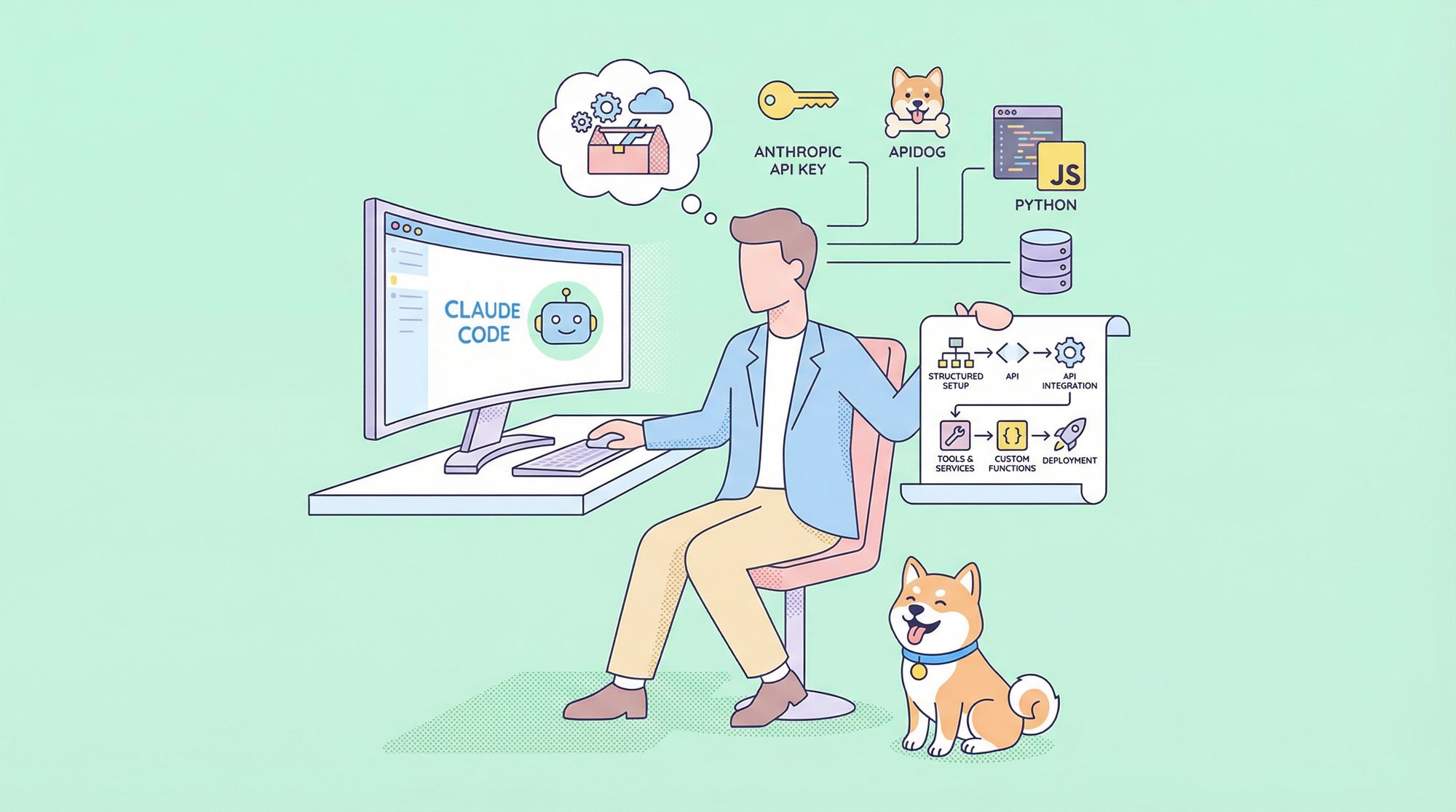
Developers constantly seek tools that enhance productivity and enforce best practices in software projects. Claude Code emerges as a powerful AI-assisted solution from Anthropic, enabling teams to integrate intelligent automation directly into their workflows. This assistant leverages large language models to handle tasks such as code reviews, ticket management, and quality checks. However, configuring Claude Code requires a structured approach to unlock its full potential.
What is Claude Code?
Claude Code represents an AI-powered coding companion designed by Anthropic to assist developers in real-time. It functions as a "super-powered teammate" that learns project-specific conventions, enforces coding standards, and automates repetitive tasks. Unlike general-purpose chatbots, Claude Code integrates deeply into your development environment, using hooks, skills, and agents to provide context-aware support.
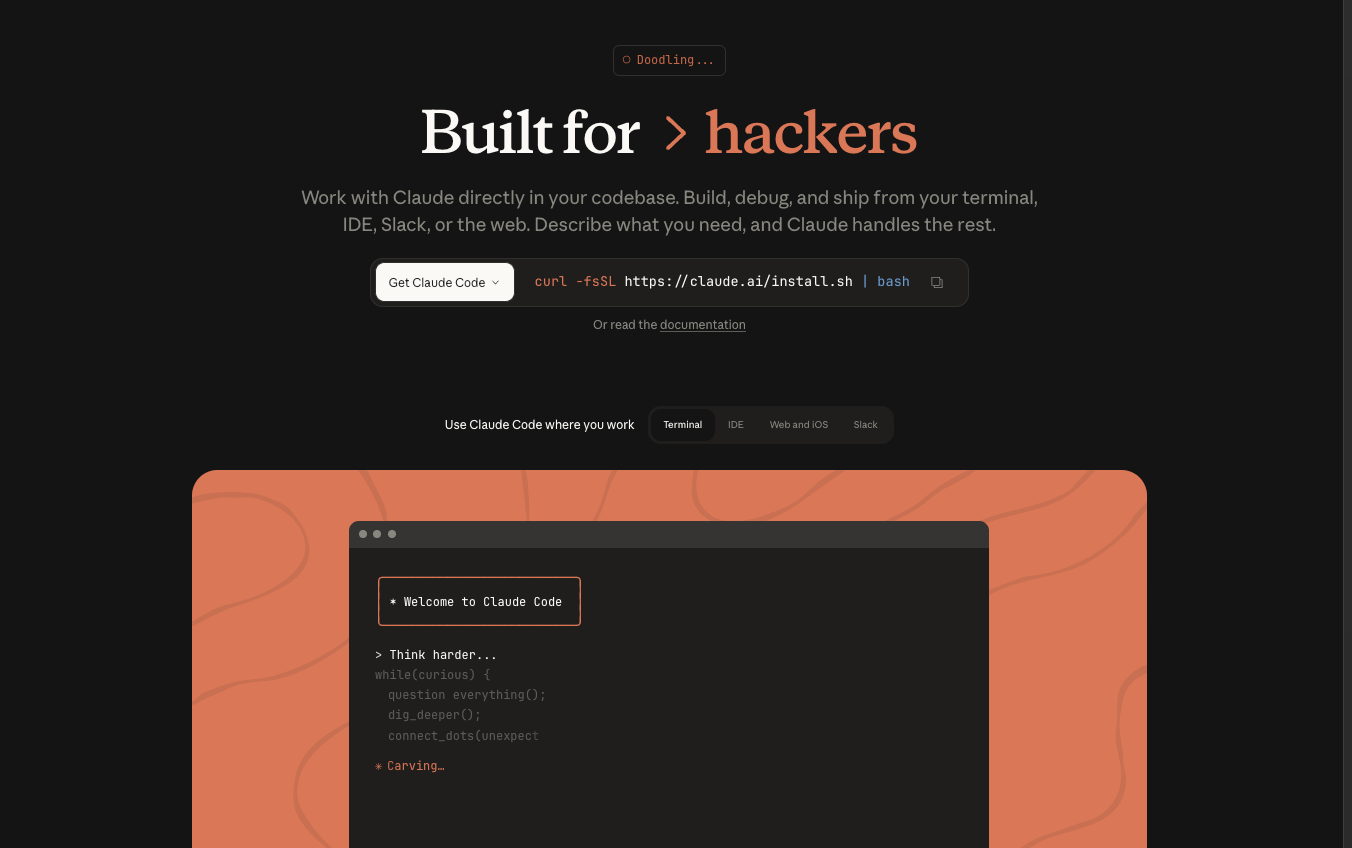
Many developers overlook the configuration aspect, assuming default settings suffice. Yet, proper setup allows Claude Code to handle complex scenarios, such as blocking direct edits on the main branch or automatically running lint checks. Furthermore, it supports integrations via the Model Context Protocol (MCP), enabling connections to tools like JIRA, GitHub, and databases. This flexibility makes Claude Code ideal for teams aiming to maintain high code quality without constant manual oversight.
To illustrate, the Claude Code Showcase repository demonstrates these capabilities through a sample project structure. It includes directories for skills, agents, and hooks, showcasing how small configuration tweaks yield significant efficiency gains. As you configure Claude Code, remember that even minor adjustments, like defining precise skill descriptions, can lead to substantial improvements in accuracy and relevance.
Prerequisites for Configuring Claude Code
Before you configure Claude Code, gather the necessary components to ensure a seamless process. First, obtain an Anthropic API key, as it powers all interactions. Visit the Anthropic dashboard, sign up if needed, and generate the key. Store it securely, perhaps as an environment variable named ANTHROPIC_API_KEY.
Next, prepare your development environment. Claude Code works best in a Git-managed repository, so initialize one if your project lacks it. Install essential tools like Node.js for running scripts and Python for certain language servers. For instance, use npm to install global packages such as typescript-language-server for TypeScript support.
Additionally, familiarize yourself with basic JSON and Markdown formats, since configurations rely on them. If your project involves external integrations, set up accounts for services like JIRA or Slack. Collect credentials, including API tokens, but never commit them to version control—use environment variables instead.
Tools like Apidog become relevant here for testing API endpoints. Since Claude Code configurations often involve API calls to Anthropic's services, Apidog allows you to mock responses, debug requests, and validate payloads. This preparation step ensures you identify issues early, saving time during actual setup.
Finally, clone or reference a showcase repository, such as ChrisWiles/claude-code-showcase on GitHub, to use as a template. This provides ready-made examples, reducing the learning curve. With these prerequisites in place, you can move forward confidently.
Setting Up the Environment for Claude Code
Begin the configuration by establishing the core environment. Create a dedicated directory named .claude in your project's root. This folder houses all Claude Code-specific files, keeping your main codebase clean.
Execute the following command in your terminal:
mkdir -p .claude/{agents,commands,hooks,skills}
This structure organizes components logically: agents for specialized tasks, commands for quick actions, hooks for automation, and skills for domain knowledge.
Next, add a CLAUDE.md file in the root or .claude directory. Populate it with project details, including your tech stack, custom commands, and style rules. For example:
# Project Overview
- Stack: TypeScript, Node.js, GraphQL
- Style: Use ESLint with Airbnb preset
- Commands: /ticket for JIRA integration
This file serves as Claude Code's knowledge base, enabling it to reference project conventions during interactions.
Furthermore, configure environment variables. Define ANTHROPIC_API_KEY in your shell or a .env file (ignored via .gitignore). If using GitHub Actions, add it as a repository secret. This step ensures secure API access without exposing sensitive information.
To enhance real-time capabilities, enable Language Server Protocol (LSP) support. Install servers like typescript-language-server globally:
npm install -g typescript-language-server
Then, reference them in .claude/settings.json. This integration provides diagnostics, completions, and hover information, making Claude Code more intuitive.
Throughout this setup, test incrementally. Use Apidog to simulate Anthropic API calls, verifying that your key authenticates correctly. Such testing confirms the environment's readiness before adding complex features.
Configuring the .claude Directory in Detail
With the environment ready, focus on populating the .claude directory. Start with settings.json, which defines hooks, permissions, and plugins.
Craft a basic settings.json like this:
{
  "hooks": {},
  "enabledPlugins": ["typescript-lsp"]
}
Expand it as needed. For instance, add a PreToolUse hook to prevent edits on the main branch:
{
  "hooks": {
    "PreToolUse": [
      {
        "matcher": "Edit|Write",
        "hooks": [
          {
            "type": "command",
            "command": "[ $(git branch --show-current) != \"main\" ] || { echo '{\"block\": true, \"message\": \"Cannot edit on main branch\"}' >&2; exit 2; }",
            "timeout": 5
          }
        ]
      }
    ]
  }
}
This configuration actively blocks unauthorized actions, promoting safe branching practices.
Additionally, create a settings.md file for human-readable documentation. Describe each hook's purpose, ensuring team members understand the setup.
As you build this directory, incorporate transitionary elements like conditional hooks. These small additions differentiate a basic configuration from a robust one, allowing Claude Code to adapt dynamically.
Adding Skills to Claude Code
Skills empower Claude Code with project-specific knowledge. Place them in .claude/skills as subdirectories, each containing a SKILL.md file.
For a testing-patterns skill, structure it as follows:
---
name: testing-patterns
description: Jest testing patterns for this project. Use when writing tests, creating mocks, or following TDD workflow.
---
# Testing Patterns
## Test Structure
Use describe blocks for grouping.
Follow AAA pattern: Arrange, Act, Assert.
Claude Code applies skills automatically based on prompts, file paths, or detected intent. Therefore, craft descriptions precisely to trigger them appropriately.
Furthermore, add frontmatter for metadata, such as allowed-tools. This restricts skills to compatible contexts, preventing mismatches.
To optimize, evaluate skills regularly. Use hooks like skill-eval.sh to suggest relevant ones during interactions. This approach ensures Claude Code delivers targeted assistance, enhancing overall efficiency.
When integrating APIs, leverage Apidog to test skill-related endpoints. For example, if a skill queries external data, mock the response in Apidog to simulate scenarios without live calls.
Creating Agents for Specialized Tasks
Agents extend Claude Code's capabilities for focused roles. Define them in .claude/agents as Markdown files, like code-reviewer.md.
An example agent:
# Code Reviewer Agent
Review code for:
- TypeScript strictness
- Error handling
- Test coverage
Suggest improvements aligned with project standards.
Invoke agents via commands or workflows. They process inputs methodically, providing structured feedback.
Moreover, combine agents with skills. Reference a testing-patterns skill in the agent description to enforce consistent reviews.
This modular design allows you to scale configurations. Start with one agent and expand, observing how each addition refines workflows.
Setting Up Commands in Claude Code
Commands offer shortcut interactions. Store them in .claude/commands as Markdown files.
For a /ticket command:
---
name: ticket
description: Handle JIRA tickets: read, implement, update status, create PR.
---
/ticket PROJ-123
Claude Code executes these when prefixed with a slash in prompts.
Additionally, integrate with MCP for external actions. Configure .mcp.json for JIRA:
{
  "mcpServers": {
    "jira": {
      "type": "stdio",
      "command": "npx",
      "args": ["-y", "@anthropic/mcp-jira"],
      "env": {
        "JIRA_HOST": "${JIRA_HOST}",
        "JIRA_EMAIL": "${JIRA_EMAIL}",
        "JIRA_API_TOKEN": "${JIRA_API_TOKEN}"
      }
    }
  }
}
This setup enables seamless ticket management. Test integrations using Apidog to send sample requests to JIRA's API, verifying compatibility.
Configuring Hooks for Automation
Hooks automate responses to events. Define them in settings.json under categories like PreToolUse or PostEdit.
For auto-formatting:
Add a hook that runs npm run format after edits.
Such automations reduce manual effort. However, set timeouts to prevent hangs.
Furthermore, use matchers to apply hooks selectively, ensuring they trigger only when relevant.
Integrating with External Tools via MCP
MCP facilitates connections to external systems. Beyond JIRA, configure for Slack or databases.
For Slack:
Update .mcp.json with appropriate env vars and commands.
This integration allows Claude Code to post updates or query channels.
To debug, employ Apidog. Create collections for MCP endpoints, testing payloads to confirm data flow.
Using GitHub Actions with Claude Code
Automate repository tasks via .github/workflows.
For PR reviews:
Create pr-claude-code-review.yml:
name: Claude Code PR Review
on: [pull_request]
jobs:
  review:
    runs-on: ubuntu-latest
    steps:
      - uses: actions/checkout@v3
      - uses: anthropics/claude-code-action@v1
        with:
          api-key: ${{ secrets.ANTHROPIC_API_KEY }}
Schedule others for dependency audits or doc syncs.
These workflows maintain project health effortlessly.

Best Practices for Claude Code Configuration
Adopt version control for .claude files. Review changes in PRs to catch errors.
Moreover, document everything in CLAUDE.md for onboarding.
Limit skills to essentials to avoid overload.
Regularly update API keys and test with Apidog for security.
Troubleshooting Common Issues
If hooks fail, check timeouts and commands.
For API errors, verify keys via Apidog.
LSP issues? Ensure servers run correctly.
Address these proactively to minimize disruptions.
Conclusion
Configuring Claude Code demands attention to detail, but the rewards include streamlined workflows and elevated code quality. By following this guide, you equip your projects with intelligent automation. Remember, incremental refinements often produce the most impactful results. Experiment with the showcase repository and tools like Apidog to refine your setup further.