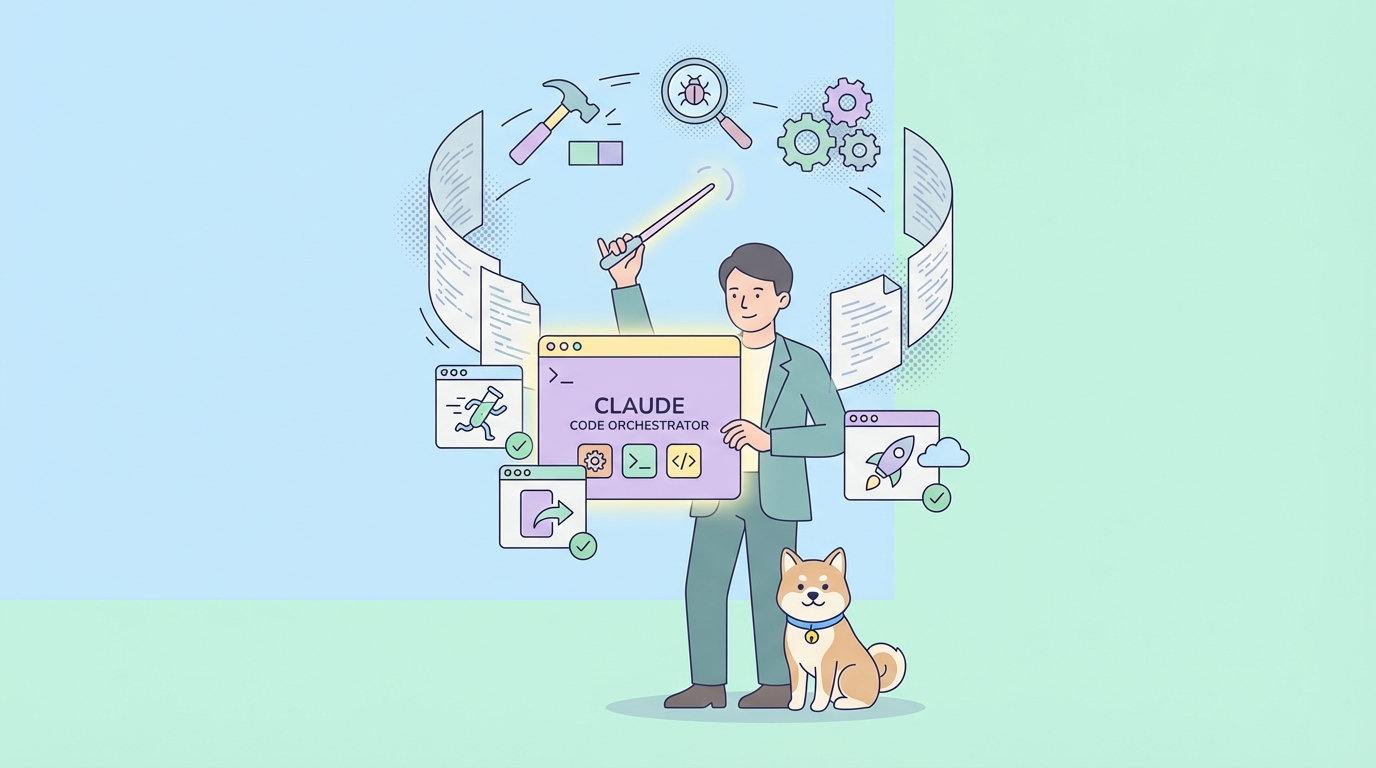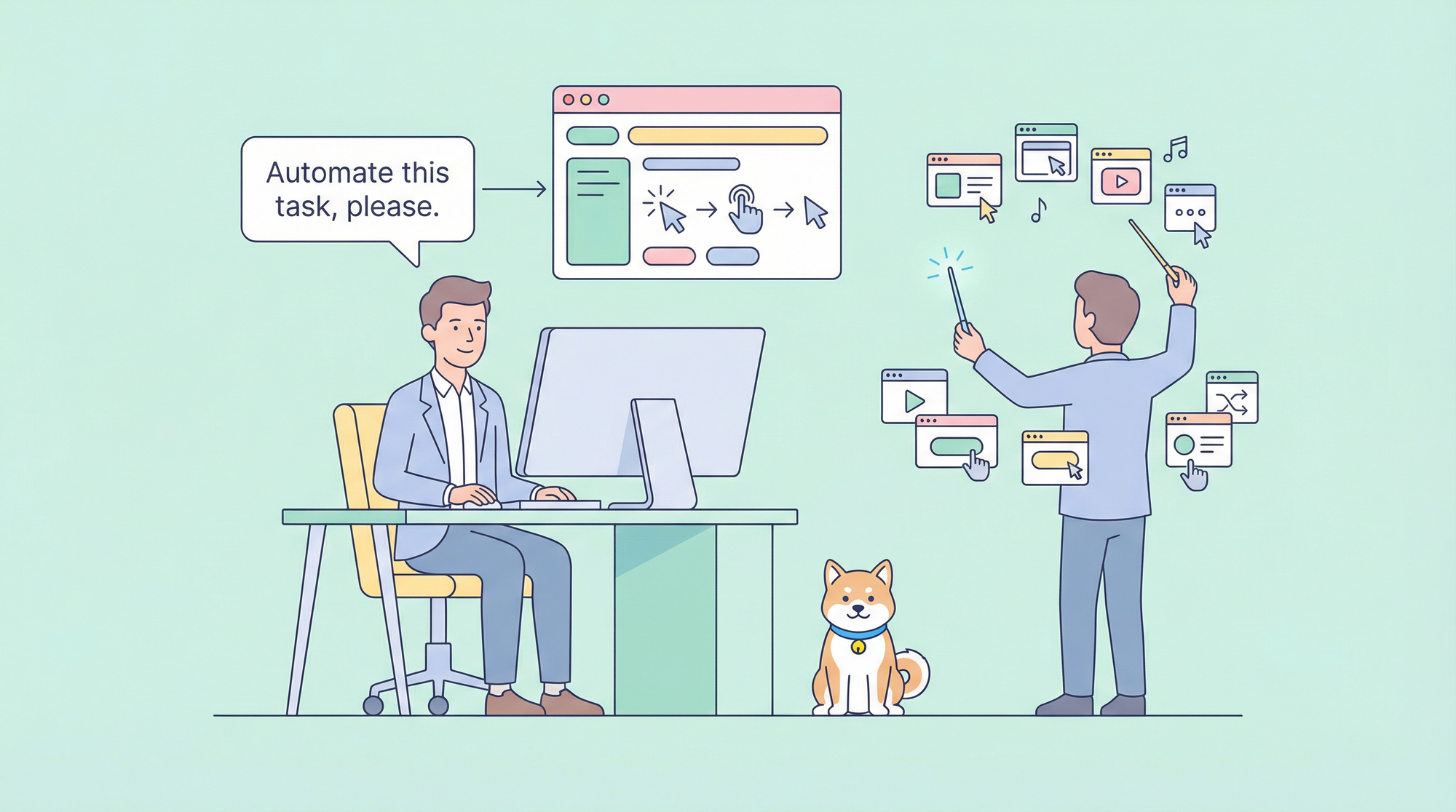
Browser automation has traditionally required writing complex scripts, managing selectors, and handling unpredictable page states. Claude Code transforms this process by letting you describe what you want in natural language and having AI translate it into precise browser actions.
What makes Claude Code browser automation powerful:
- Natural Language Control: Tell Claude "click the login button" instead of writing selector code
- Intelligent Adaptation: AI understands context and adapts to page changes
- Visual Understanding: Accessibility tree and snapshot modes provide reliable element targeting
- Cross-Browser Support: Works with Chromium, Firefox, and WebKit
- Seamless Integration: Runs directly in your development workflow
This guide covers everything from basic setup to advanced automation patterns using MCP (Model Context Protocol) servers.
Understanding Browser Automation Options
Claude Code offers multiple approaches to browser automation, each suited to different use cases.
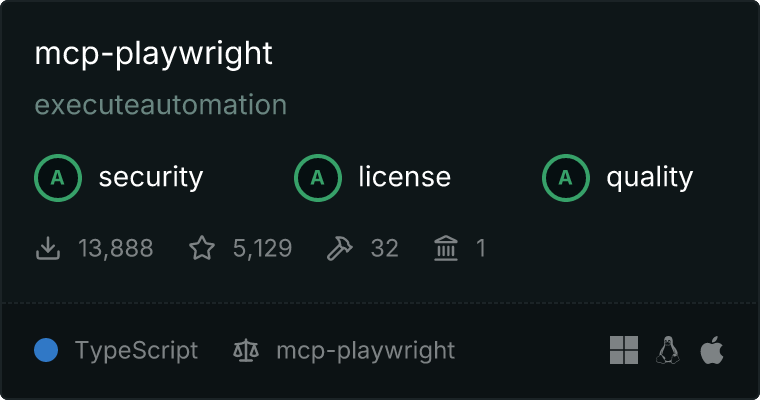
Option 1: Playwright MCP (Recommended)
Microsoft's Playwright MCP is the recommended approach for browser automation with Claude Code. It provides:
- Official Support: Maintained by Microsoft
- Cross-Browser: Works with Chromium, Firefox, and WebKit
- Accessibility Tree Mode: Reliable element targeting without fragile selectors
- Active Development: Regular updates and improvements
Option 2: Puppeteer MCP (Community)
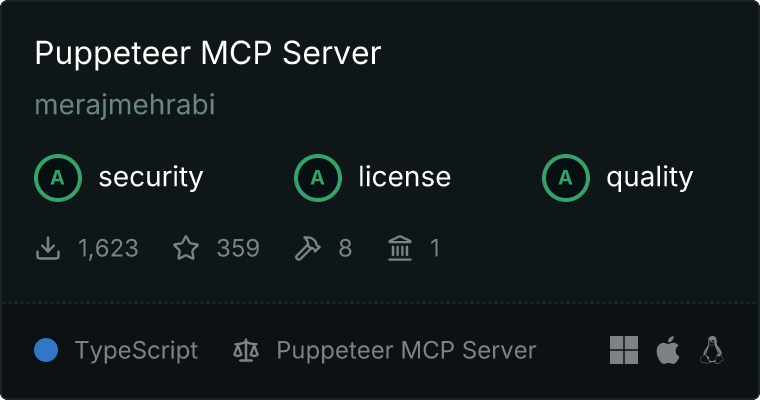
While the official Puppeteer MCP package has been deprecated, community-maintained alternatives exist:
- Familiar API: If you already know Puppeteer
- Chrome-Focused: Optimized for Chrome/Chromium
- Legacy Support: For existing Puppeteer-based workflows
Option 3: Claude Computer Use API
For full desktop control beyond just browsers:
- Complete Desktop Access: Control any application
- Screenshot-Based: Visual understanding of screen content
- API Integration: Build custom automation solutions
Comparison Table
| Feature | Playwright MCP | Puppeteer MCP | Computer Use API |
|---|---|---|---|
| Browser Support | Chromium, Firefox, WebKit | Chromium only | Any browser |
| Maintenance | Microsoft (official) | Community | Anthropic |
| Element Targeting | Accessibility tree | CSS selectors | Visual/coordinates |
| Headless Mode | Yes | Yes | No (needs display) |
| Best For | Web testing, scraping | Legacy projects | Desktop automation |
Setting Up Playwright MCP
Playwright MCP is the recommended way to add browser automation to Claude Code. Here's how to set it up.
Prerequisites
- Node.js 18 or higher
- Claude Code CLI installed
- npm or npx available
Step 1: Configure MCP Server
Add Playwright MCP to your Claude Code configuration. Create or edit .claude/settings.json:
{
  "mcpServers": {
    "playwright": {
      "command": "npx",
      "args": ["@playwright/mcp@latest"],
      "env": {
        "PLAYWRIGHT_BROWSERS_PATH": "0"
      }
    }
  }
}
Step 2: Verify Installation
Start Claude Code and verify the MCP server is running:
claude
You should see Playwright MCP listed in available tools. Test with a simple command:
Navigate to https://example.com and tell me the page title
Step 3: Configure Browser Options
For more control, customize the MCP server settings:
{
  "mcpServers": {
    "playwright": {
      "command": "npx",
      "args": [
        "@playwright/mcp@latest",
        "--browser", "chromium",
        "--headless"
      ],
      "env": {
        "PLAYWRIGHT_BROWSERS_PATH": "0"
      }
    }
  }
}
Available options:
--browser: Choosechromium,firefox, orwebkit--headless: Run without visible browser window--port: Specify custom port (default: auto-assigned)--host: Bind to specific host (default: localhost)
Step 4: Running in CI/CD
For automated pipelines, use headless mode:
{
  "mcpServers": {
    "playwright": {
      "command": "npx",
      "args": [
        "@playwright/mcp@latest",
        "--headless",
        "--browser", "chromium"
      ]
    }
  }
}
Alternative: Puppeteer MCP
If you prefer Puppeteer or have existing Puppeteer-based workflows, you can use community-maintained MCP servers.
Installation
Use the community Puppeteer MCP server:
{
  "mcpServers": {
    "puppeteer": {
      "command": "npx",
      "args": ["-y", "puppeteer-mcp-server"]
    }
  }
}
Alternative: puppeteer-mcp-claude
Another community option with comprehensive browser automation:
# Clone the repository
git clone https://github.com/jaenster/puppeteer-mcp-claude.git
cd puppeteer-mcp-claude
npm install
Configure in .claude/settings.json:
{
  "mcpServers": {
    "puppeteer": {
      "command": "node",
      "args": ["/path/to/puppeteer-mcp-claude/index.js"]
    }
  }
}
Key Differences from Playwright
| Aspect | Playwright MCP | Puppeteer MCP |
|---|---|---|
| Setup | npx (no install) | May require npm install |
| Browsers | Multiple | Chrome/Chromium |
| Selector Strategy | Accessibility tree | CSS/XPath |
| Maintenance | Microsoft | Community |
Basic Browser Automation Commands
Once your MCP server is configured, you can control browsers using natural language.
Navigation
Navigate to https://github.com
Go to the login page on github.com
Open https://docs.example.com/api in a new tab
Interacting with Elements
Click the "Sign In" button
Type "my-username" in the email field
Select "United States" from the country dropdown
Check the "Remember me" checkbox
Reading Page Content
Get the text content of the main heading
List all links on the current page
Extract the product prices from this page
Taking Screenshots
Take a screenshot of the current page
Capture a screenshot of just the navigation menu
Waiting and Timing
Wait for the loading spinner to disappear
Wait 3 seconds then click the submit button
Wait until the "Success" message appears
Form Handling
Fill out the contact form:
- Name: John Doe
- Email: john@example.com
- Message: Testing automation
Then submit the form
Complex Interactions
Scroll down to the footer and click the "Privacy Policy" link
Hover over the "Products" menu and click "Enterprise"
Drag the slider to the 75% position
Advanced Automation Patterns
Pattern 1: Multi-Step Workflows
Create complex automation sequences:
Automate the following checkout flow:
1. Navigate to https://shop.example.com
2. Search for "wireless headphones"
3. Click on the first product result
4. Select size "Medium" if available
5. Click "Add to Cart"
6. Go to cart and verify the item is there
7. Take a screenshot of the cart
Pattern 2: Data Extraction
Extract structured data from web pages:
Go to https://news.ycombinator.com and extract the top 10 stories with:
- Title
- URL
- Points
- Number of comments
- Posted time ago

Format as JSON
Pattern 3: Authentication Flows
Handle login sequences:
Log into the application:
1. Navigate to https://app.example.com/login
2. Enter username: test@example.com
3. Enter password from environment variable LOGIN_PASSWORD
4. Click Sign In
5. Wait for dashboard to load
6. Verify login succeeded by checking for "Welcome" text
Pattern 4: Visual Regression Testing
Compare page states:
1. Navigate to https://staging.example.com
2. Take a full-page screenshot named "staging-homepage"
3. Navigate to https://production.example.com
4. Take a full-page screenshot named "production-homepage"
5. Compare the two screenshots and report any differences
Pattern 5: Monitoring and Alerting
Create monitoring workflows:
Check if the service is healthy:
1. Navigate to https://status.example.com
2. Look for "All Systems Operational" text
3. If not found, extract the current status message
4. Take a screenshot for documentation
5. Report the findings
Pattern 6: E2E Testing with API Validation
Combine browser and API testing:
Test the user registration flow:
1. Navigate to https://app.example.com/register
2. Fill in registration form with test data
3. Submit the form
4. Wait for confirmation page
5. Verify the user was created by checking the API response
6. Take a screenshot of the success page
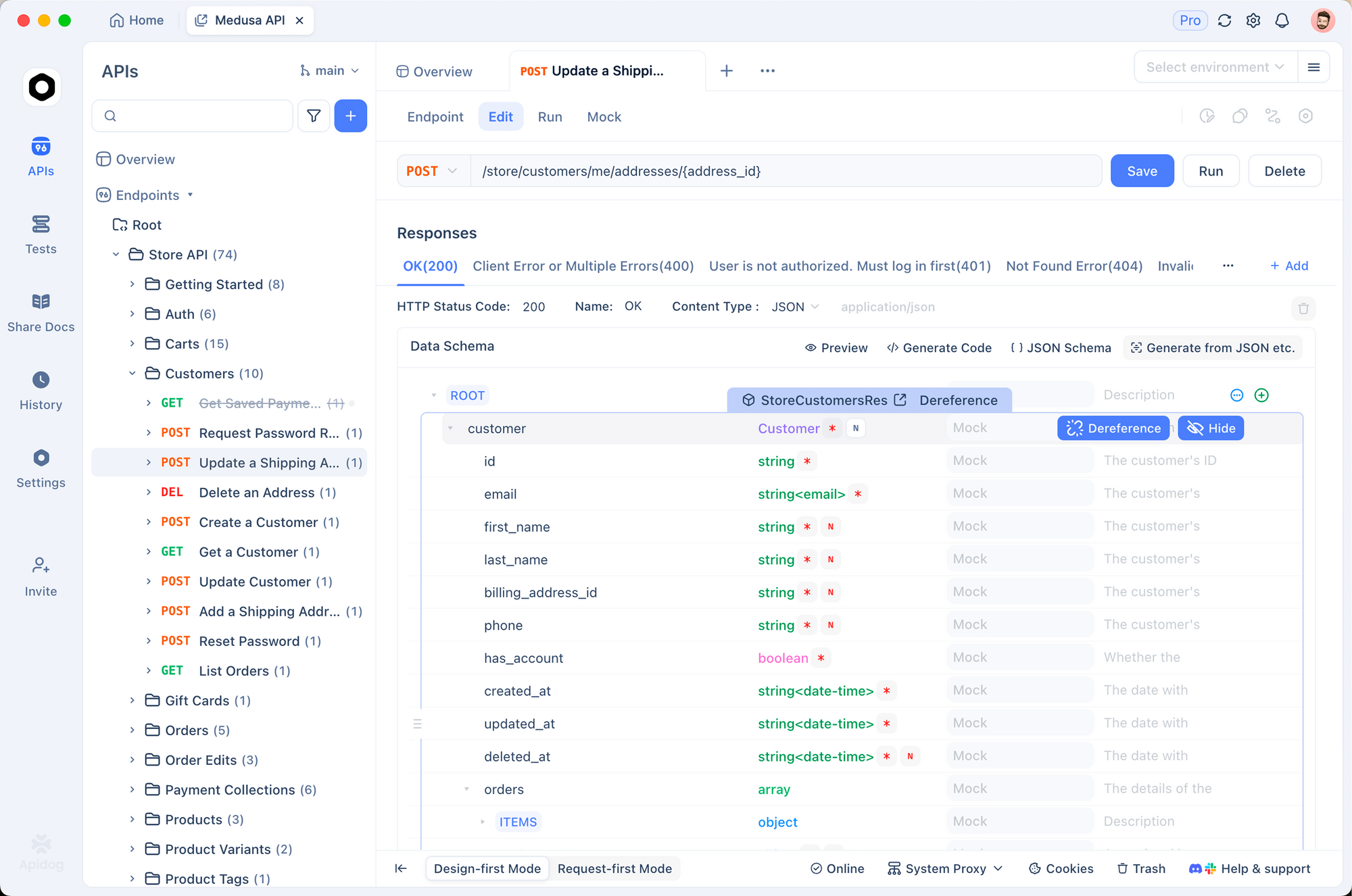
When testing flows that involve APIs, use Apidog to validate the backend responses. You can verify that your browser actions trigger the correct API calls and receive expected responses.
Real-World Use Cases
Use Case 1: Automated Code Review Screenshots
Capture visual documentation for code reviews:
For the PR review, capture screenshots of:
1. The login page before changes
2. The login page after changes
3. The error state when invalid credentials are entered
4. The success redirect after valid login

Save all screenshots to ./review-screenshots/
Use Case 2: Competitive Analysis
Monitor competitor websites:
Analyze competitor pricing:
1. Navigate to https://competitor.com/pricing
2. Extract all plan names and prices
3. Take a screenshot of the pricing page
4. Compare with our current pricing data
5. Generate a summary report
Use Case 3: Automated Form Testing
Test form validation across scenarios:
Test the contact form validation:

Test 1: Empty submission
- Submit empty form
- Verify all required field errors appear
- Screenshot: empty-form-errors.png

Test 2: Invalid email
- Enter "John" in name
- Enter "invalid-email" in email
- Submit
- Verify email validation error
- Screenshot: invalid-email-error.png

Test 3: Valid submission
- Fill all fields correctly
- Submit
- Verify success message
- Screenshot: form-success.png
Use Case 4: SEO Auditing
Automate SEO checks:
Perform SEO audit on https://mysite.com:
1. Check page title length (should be 50-60 characters)
2. Check meta description exists and length
3. Verify H1 tag exists and is unique
4. Check all images have alt text
5. Verify canonical URL is set
6. Check for broken links on the page
7. Generate audit report
Use Case 5: Accessibility Testing
Automate accessibility checks:
Run accessibility audit on https://app.example.com:
1. Navigate to the homepage
2. Check color contrast ratios
3. Verify all interactive elements are keyboard accessible
4. Check ARIA labels are present
5. Verify focus indicators are visible
6. Test with screen reader simulation
7. Generate accessibility report
Use Case 6: Performance Monitoring
Track page performance:
Monitor page load performance:
1. Clear browser cache
2. Navigate to https://app.example.com
3. Record time to first contentful paint
4. Record time to interactive
5. Capture network waterfall
6. Take screenshot when fully loaded
7. Compare with baseline metrics
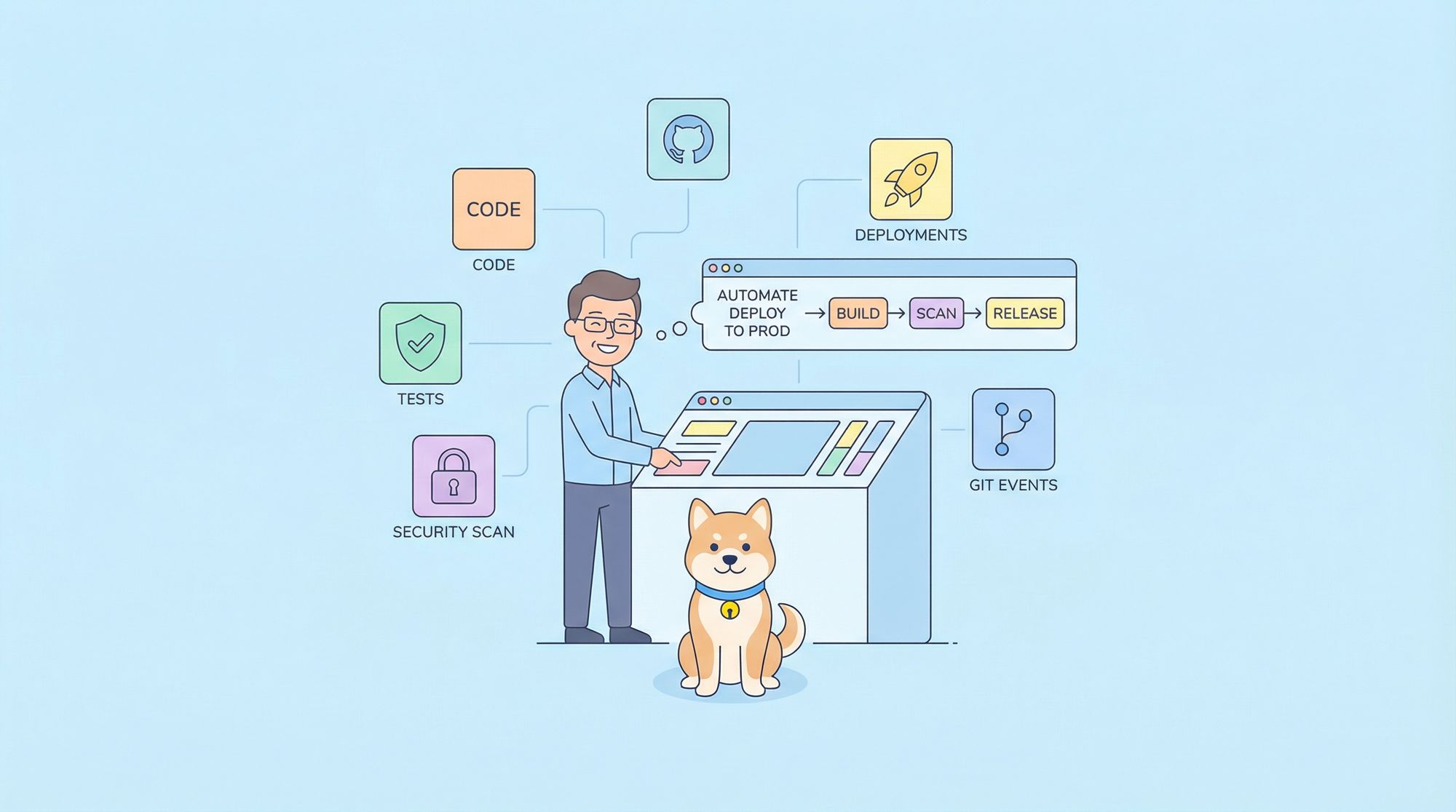
Integrating with CI/CD Pipelines
GitHub Actions Integration
Add browser automation to your CI pipeline:
# .github/workflows/e2e-tests.yml
name: E2E Browser Tests

on:
  pull_request:
    branches: [main, develop]

jobs:
  browser-tests:
    runs-on: ubuntu-latest

    steps:
      - uses: actions/checkout@v4

      - name: Setup Node.js
        uses: actions/setup-node@v4
        with:
          node-version: '20'

      - name: Install Playwright Browsers
        run: npx playwright install --with-deps chromium

      - name: Install Claude Code
        run: npm install -g @anthropic-ai/claude-code

      - name: Run Browser Tests
        env:
          ANTHROPIC_API_KEY: ${{ secrets.ANTHROPIC_API_KEY }}
        run: |
          claude --mcp playwright "
            Run the following browser tests:
            1. Navigate to ${{ env.STAGING_URL }}
            2. Test login flow with test credentials
            3. Verify dashboard loads correctly
            4. Take screenshots of each step
            5. Report any failures
          "

      - name: Upload Screenshots
        if: always()
        uses: actions/upload-artifact@v4
        with:
          name: browser-test-screenshots
          path: screenshots/
Creating a Browser Test Skill
Create a reusable skill for browser testing:
---
name: browser-test-runner
version: "1.0.0"
description: Runs browser-based E2E tests using Playwright MCP
user-invocable: true
allowed-tools:
  - Bash
  - Read
  - Write
  - mcp_playwright
---

# Browser Test Runner

Automated browser testing skill using Playwright MCP.

## Usage

```bash
/browser-test-runner --url https://app.example.com --suite smoke
/browser-test-runner --url https://staging.example.com --suite full
Claude Computer Use API
For scenarios requiring full desktop control, Claude's Computer Use API provides comprehensive automation capabilities.
Overview
Computer Use is a beta feature that allows Claude to:
- Take screenshots of the screen
- Move and click the mouse
- Type text
- Scroll and navigate
Basic Setup
import anthropic

client = anthropic.Anthropic()

response = client.messages.create(
    model="claude-sonnet-4-20250514",
    max_tokens=1024,
    tools=[
        {
            "type": "computer_20250124",
            "name": "computer",
            "display_width_px": 1920,
            "display_height_px": 1080,
            "display_number": 1
        }
    ],
    messages=[
        {
            "role": "user",
            "content": "Open Chrome and navigate to github.com"
        }
    ],
    betas=["computer-use-2025-01-24"]
)
When to Use Computer Use vs MCP
| Scenario | Recommended Approach |
|---|---|
| Web scraping | Playwright MCP |
| E2E testing | Playwright MCP |
| Desktop app automation | Computer Use API |
| Cross-application workflows | Computer Use API |
| CI/CD pipelines | Playwright MCP (headless) |
| Visual testing | Either |
Computer Use Best Practices
- Always verify actions before clicking
- Use specific coordinates when possible
- Add delays between rapid actions
- Implement error recovery for missed clicks
- Limit scope to necessary permissions
Security Considerations
Authentication Handling
Do:
- Use environment variables for credentials
- Clear credentials after tests
- Use test accounts, not production credentials
Don't:
- Hardcode passwords in commands
- Store credentials in screenshots
- Share authentication state files
# Use environment variables
export TEST_USERNAME="test@example.com"
export TEST_PASSWORD="secure-test-password"
Log in using credentials from environment variables
TEST_USERNAME and TEST_PASSWORD
Data Privacy
Do:
- Mask sensitive data in screenshots
- Clear browser data after tests
- Use staging/test environments
Don't:
- Screenshot pages with real user data
- Store personal information
- Run against production with real data
Network Security
Do:
- Limit browser network access
- Use allowlists for permitted domains
- Monitor network requests
Don't:
- Allow unrestricted internet access
- Ignore SSL certificate errors in production
- Download untrusted content
MCP Server Security
- Run locally when possible
- Audit MCP server code before use
- Limit tool permissions to minimum required
- Monitor MCP server logs for anomalies
Conclusion
Browser automation with Claude Code transforms how developers approach web testing, scraping, and automation. By combining natural language instructions with powerful MCP servers like Playwright, you can build sophisticated automation workflows without writing complex scripts.
For comprehensive testing, pair Claude Code browser automation with API validation. Download Apidog free to build complete testing workflows that cover both your frontend and backend.