API development used to mean hours of writing boilerplate, debugging cryptic errors, and manually crafting documentation. Not anymore.
AI coding assistants like Claude, ChatGPT, GitHub Copilot, and Cursor are reshaping how developers build APIs. They’re not just autocomplete on steroids—they’re changing the entire workflow, from design to deployment.
Here’s what’s actually happening in the field, based on real developer experiences and recent data showing 117 viral discussions about AI tools in developer communities.
The Shift: From Manual to AI-Assisted API Work
Traditional API development follows a predictable pattern: design the schema, write the handlers, add validation, create tests, write docs. Each step takes time and focus.
AI assistants compress this timeline. They generate OpenAPI specs from descriptions, write test cases from endpoints, and create documentation from code—all in seconds.
The change isn’t about replacing developers. It’s about removing the tedious parts so you can focus on architecture and business logic.
What AI Assistants Actually Do for API Development
1. Generate API Schemas and Specifications
Describe your API in plain English, and AI tools generate OpenAPI/Swagger specs.
Example prompt:“Create an OpenAPI 3.0 spec for a user management API with endpoints for registration, login, profile updates, and password reset.”
Claude or ChatGPT will output a complete spec with proper schemas, response codes, and security definitions. You refine it, but the foundation is there in 30 seconds instead of 30 minutes.
2. Write Boilerplate Code Faster
API handlers follow patterns. AI assistants recognize these patterns and generate the code.
Need a REST endpoint with validation, error handling, and logging? Describe it, and the AI writes it. You review and adjust, but you’re not typing every line.
3. Create Test Cases Automatically
Testing APIs means covering edge cases, error scenarios, and happy paths. AI assistants generate comprehensive test suites.
What works well:
- Unit tests for individual endpoints
- Integration test scenarios
- Mock data generation
- Edge case identification
You still need to verify the tests make sense, but the grunt work is automated.
4. Debug Faster with Context-Aware Suggestions
Paste an error message and your code. AI assistants analyze the context and suggest fixes.
This works especially well for:
- Authentication errors
- CORS issues
- Request validation failures
- Database connection problems
The AI doesn’t just guess—it reads your code structure and suggests targeted solutions.
5. Generate API Documentation
Good documentation takes time. AI assistants read your code and generate markdown docs, including:
- Endpoint descriptions
- Request/response examples
- Authentication requirements
- Error codes and meanings
You edit for accuracy and tone, but the structure is done.
Tool Comparison: Claude vs ChatGPT vs Copilot vs Cursor
Each AI assistant has strengths for API work. Here’s what developers report:
Claude (Anthropic)
Best for: Complex API architecture, detailed explanations, refactoring
Strengths:
- Handles large codebases well
- Provides thoughtful architectural advice
- Excellent at explaining trade-offs
- Strong with TypeScript and Python APIs
Use case: “I need to refactor this monolithic API into microservices. What’s the best approach?”
Claude excels at breaking down complex problems and suggesting structured solutions.
ChatGPT (OpenAI)
Best for: Quick code generation, brainstorming, learning
Strengths:
- Fast responses
- Good at generating boilerplate
- Helpful for learning new frameworks
- Strong with JavaScript/Node.js APIs
Use case: “Generate an Express.js API with JWT authentication and rate limiting.”
ChatGPT delivers working code quickly. You’ll need to test and refine, but it’s a solid starting point.
GitHub Copilot
Best for: In-editor autocomplete, pattern recognition
Strengths:
- Seamless IDE integration
- Learns your coding style
- Suggests code as you type
- Good at completing repetitive patterns
Use case: Writing multiple similar endpoints with slight variations.
Copilot shines when you’re in flow and need quick completions without leaving your editor.
Cursor
Best for: Full-file edits, codebase-wide changes
Strengths:
- Understands entire project context
- Can edit multiple files at once
- Good at applying changes consistently
- Strong refactoring capabilities
Use case: “Update all API endpoints to use the new authentication middleware.”
Cursor handles project-wide changes that would take hours manually.
Real-World Use Cases from Developers
Case 1: Building a REST API in 2 Hours
A developer used Claude to design a complete REST API for a task management app. The AI generated:
- OpenAPI spec with 12 endpoints
- Express.js handlers with validation
- Mongoose schemas
- Jest test suite with 80% coverage
- Markdown documentation
Total time: 2 hours (including review and adjustments). Traditional approach: 1-2 days.
Case 2: Debugging a Production API Issue
An authentication bug was causing intermittent 401 errors. The developer pasted the error logs and relevant code into ChatGPT.
The AI identified a race condition in the token refresh logic and suggested a fix using a mutex. Problem solved in 15 minutes instead of hours of debugging.
Case 3: Migrating from REST to GraphQL
A team used Cursor to convert their REST API to GraphQL. The AI:
- Analyzed existing REST endpoints
- Generated GraphQL schema definitions
- Created resolvers with proper error handling
- Updated tests to match the new structure
The migration took 3 days instead of the estimated 2 weeks.
Best Practices: How to Use AI Assistants Effectively
1. Be Specific with Prompts
Vague: “Create an API” Better: “Create a Node.js REST API using Express and MongoDB for a blog platform with posts, comments, and user authentication using JWT”
Specific prompts get better results.
2. Review Everything
AI-generated code isn’t production-ready by default. Check for:
- Security vulnerabilities (SQL injection, XSS)
- Error handling gaps
- Performance issues
- Edge cases the AI missed
Treat AI output as a first draft, not the final version.
3. Use AI for Learning, Not Just Speed
Ask the AI to explain its suggestions. “Why did you use this pattern?” or “What are the trade-offs here?”
You’ll learn faster and make better decisions.
4. Combine Tools
Use Copilot for in-editor completions, Claude for architecture discussions, and ChatGPT for quick code generation. Each tool has its place.
5. Test AI-Generated Code Thoroughly
AI assistants can generate tests, but you need to verify they’re meaningful. Run them, check coverage, and add tests for scenarios the AI missed.
Limitations: What AI Can’t Do (Yet)
AI assistants are powerful, but they have limits:
1. No Business Context
AI doesn’t understand your specific business requirements. It generates generic solutions. You need to adapt them to your needs.
2. Security Isn’t Guaranteed
AI-generated code can have security flaws. Always review authentication, authorization, and data validation logic.
3. Performance Optimization Requires Human Judgment
AI can suggest optimizations, but it doesn’t know your traffic patterns or infrastructure constraints. Performance tuning still needs human expertise.
4. Complex Architecture Decisions
Should you use microservices or a monolith? REST or GraphQL? AI can explain options, but the decision depends on factors only you know.
5. Maintaining Code Quality Standards
AI doesn’t enforce your team’s coding standards automatically. You need to review and adjust generated code to match your conventions.
The Future: Where This Is Heading
AI assistants are getting better fast. Here’s what’s coming:
Smarter Context Understanding
Future AI tools will understand entire codebases, not just individual files. They’ll suggest changes that consider your full architecture.
Automated API Testing at Scale
AI will generate comprehensive test suites that cover edge cases humans miss. It’ll also identify which tests matter most for your specific API.
Real-Time Code Review
AI assistants will review your code as you write it, catching bugs and suggesting improvements before you commit.
Natural Language API Design
Describe your API in plain English, and AI will generate the complete implementation—code, tests, docs, and deployment config.
We’re not there yet, but the trajectory is clear.
How to Get Started
If you’re new to AI-assisted API development, start small:
Use AI for documentation first. Generate docs from existing code. Low risk, high value.
Try AI for test generation. Let it create test cases for one endpoint. Review and learn.
Generate boilerplate with AI. Use it for repetitive code patterns. Save time on the boring stuff.
Ask AI to explain code. Paste confusing code and ask for an explanation. Great for learning.
Gradually increase complexity. As you get comfortable, use AI for more complex tasks like refactoring or architecture design.
Integrating AI with Your API Workflow
AI assistants work best when integrated into your existing tools. If you’re using Apidog for API design, testing, and documentation, you can combine it with AI tools:
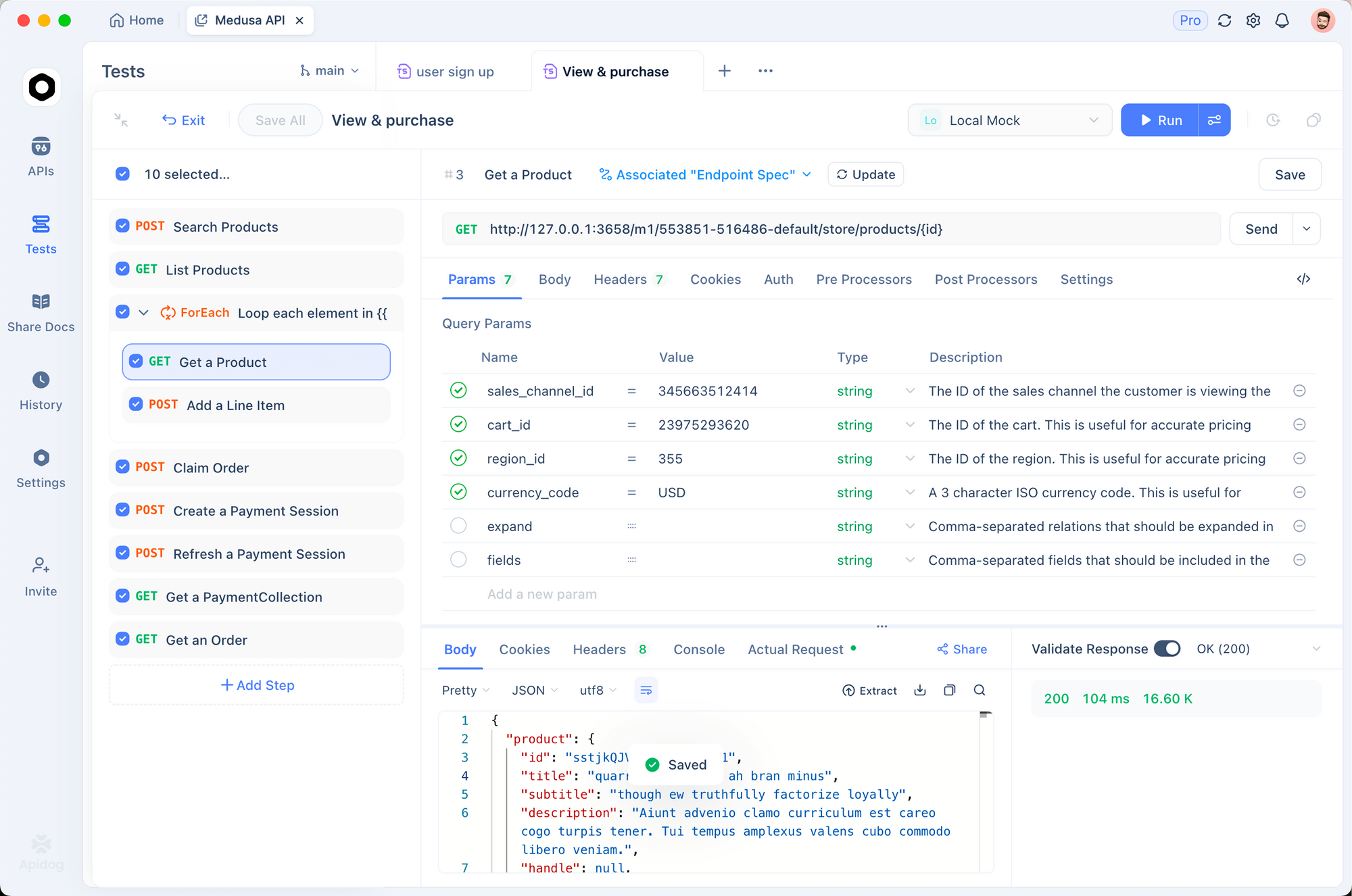
- Use AI to generate OpenAPI specs, then import them into Apidog for visual editing
- Let AI create test cases, then run them in Apidog’s automated testing environment
- Generate API documentation with AI, then customize it in Apidog’s doc builder
The combination of AI speed and specialized API tools gives you the best of both worlds.
The Bottom Line
AI coding assistants are changing API development from a manual, time-intensive process to a faster, more creative one. They handle the repetitive work so you can focus on solving real problems.
The developers who adapt fastest aren’t the ones who let AI do everything. They’re the ones who use AI strategically—for boilerplate, testing, and documentation—while keeping control of architecture, security, and business logic.
Start experimenting. Pick one AI assistant, try it on a small project, and see what works for your workflow. The tools are here. The question is how you’ll use them.
Ready to streamline your API workflow? Apidog combines design, testing, documentation, and mocking in one platform. Import your OpenAPI specs, create automated tests, and generate interactive docs—all without switching tools. Try it free—no credit card required.