
Google's Gemini 3.1 Flash Lite launched on March 3, 2026, and it's the fastest, most affordable model in the Gemini lineup. At $0.25 per million input tokens and $1.50 per million output tokens, it's built for developers who need AI at scale without burning through budget.
This guide shows you exactly how to get access, set up your API key, and start making requests. You'll have working code in under 10 minutes.
TL;DR
Quick Setup:
- Go to Google AI Studio
- Create a project and generate an API key
- Install the SDK:
pip install google-generativeai - Make your first request with model
gemini-3.1-flash-lite - Test in Apidog for easier debugging and team collaboration
Pricing: $0.25/1M input tokens, $1.50/1M output tokens
Speed: 2.5X faster than Gemini 2.5 Flash
Free Tier: 1 million input tokens free during preview
What is Gemini 3.1 Flash Lite?
Gemini 3.1 Flash Lite is Google's newest AI model designed for high-volume applications. It's 2.5X faster than Gemini 2.5 Flash with 45% faster output speed, while scoring 86.9% on GPQA Diamond and 76.8% on MMMU Pro benchmarks.
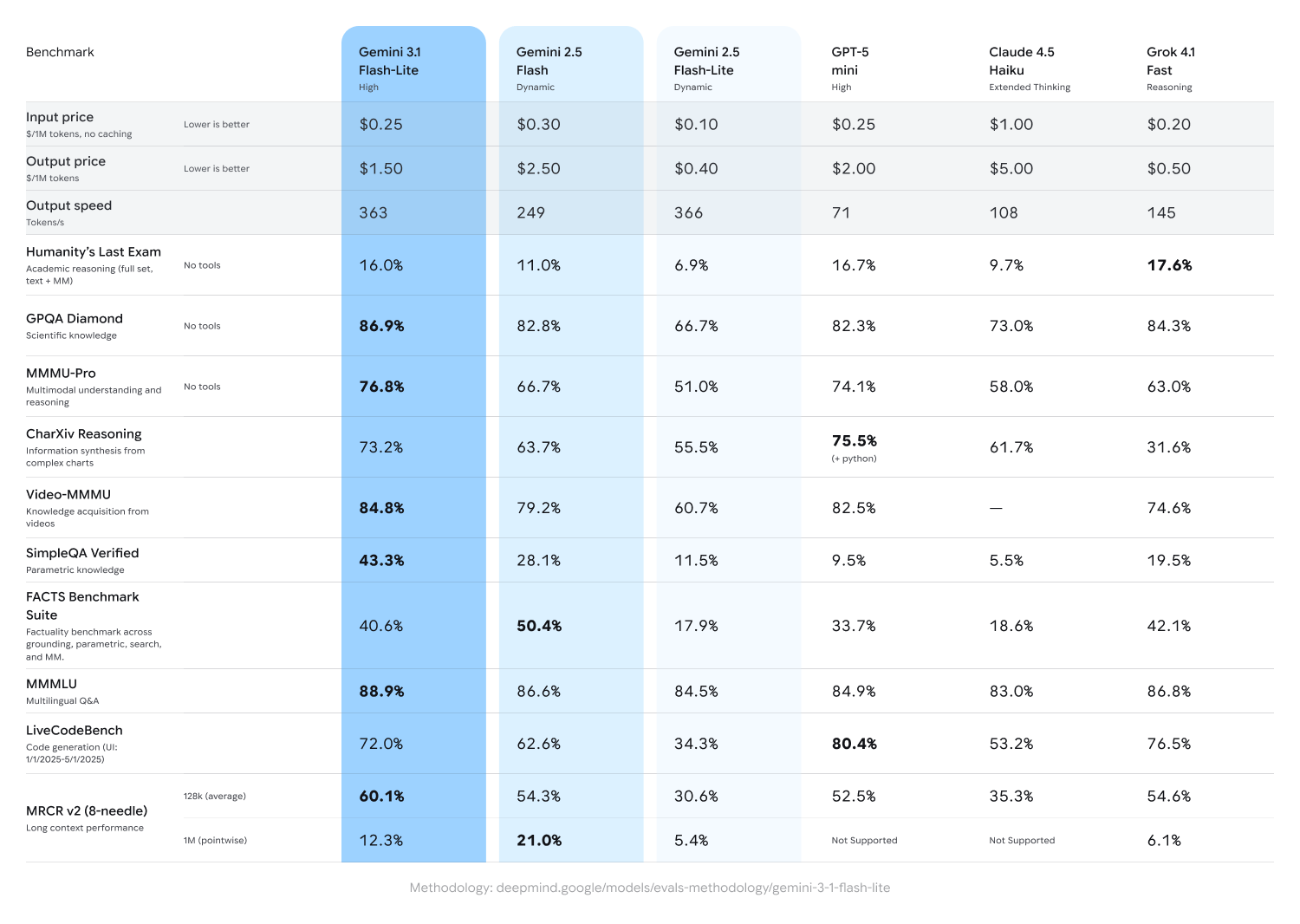
The model includes thinking levels you can adjust per request. Dial down for simple tasks, crank up for complex reasoning. This flexibility lets you optimize costs while handling varied workloads.
It's available through Google AI Studio for individual developers and Vertex AI for enterprises.
Prerequisites
Before you start, make sure you have:
- A Google account
- Python 3.7+ or Node.js 14+ installed
- Basic understanding of REST APIs
- (Optional) Apidog installed for API testing
Step 1: Create a Google AI Studio Account
Google AI Studio is the fastest way to access Gemini models for development.
- Go to aistudio.google.com
- Sign in with your Google account
- Accept the terms of service
- You'll land on the AI Studio dashboard
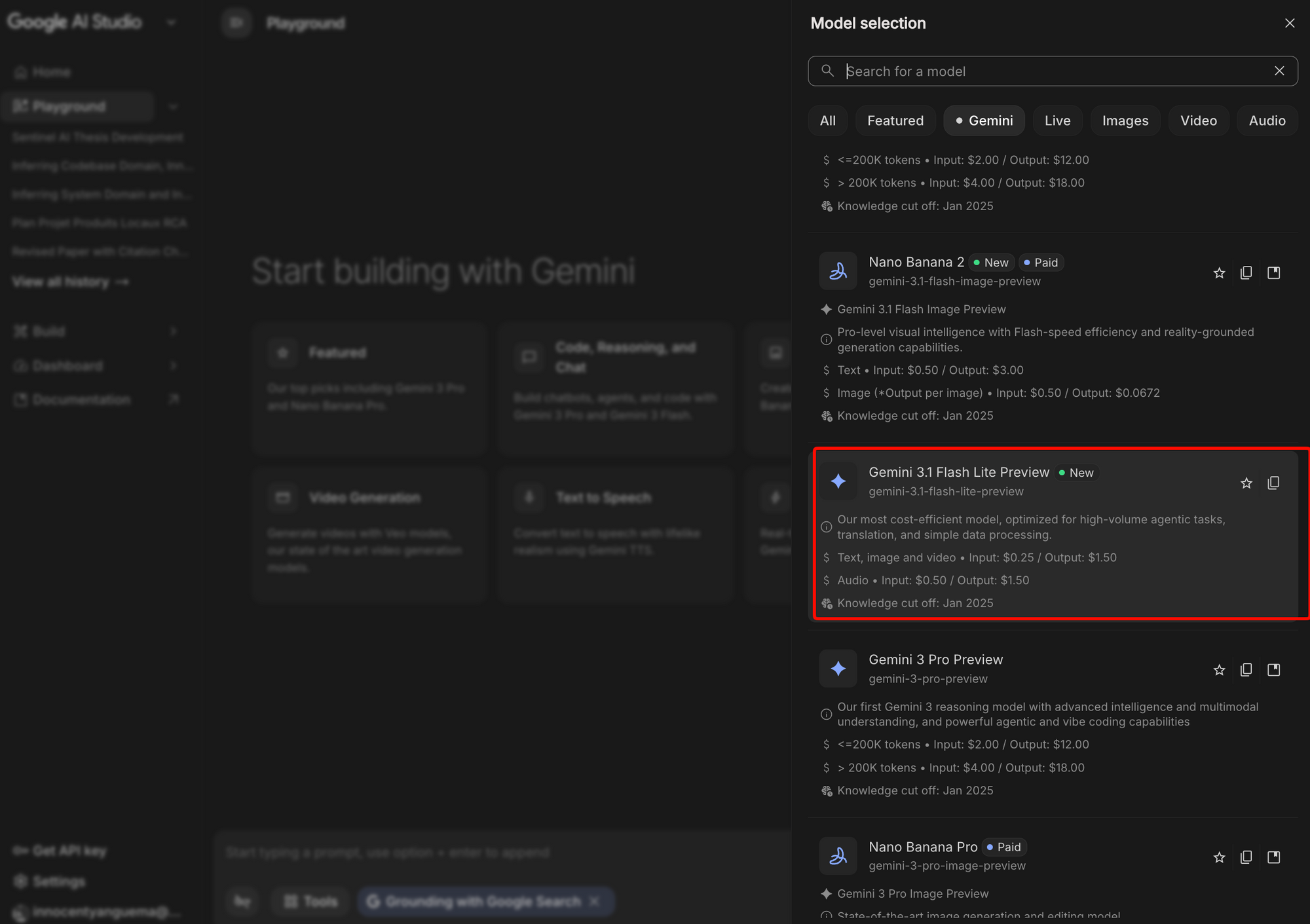
The interface shows available models, your API usage, and quick-start templates. Flash Lite appears in the model dropdown as gemini-3.1-flash-lite.
Step 2: Generate Your API Key
API keys let you authenticate requests to the Gemini API.
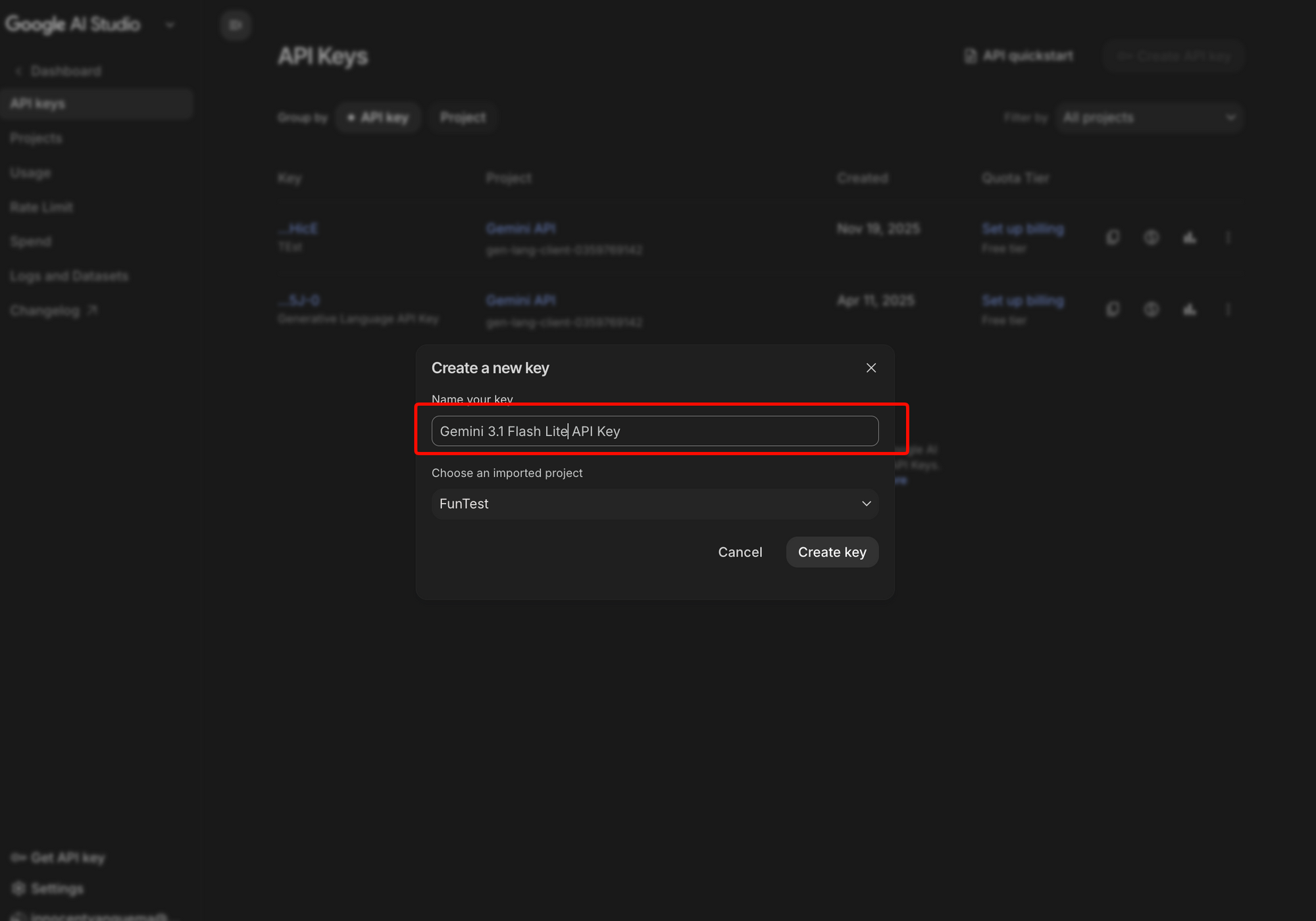
- Click Get API Key in the top right corner
- Select Create API key in new project (or choose an existing project)
- Google creates a new Cloud project and generates your key
- Copy the API key - it looks like
AIzaSyXXXXXXXXXXXXXXXXXXXXXXXXXXXXXX - Store it securely - you won't see it again
Security tip: Never commit API keys to version control. Use environment variables or secret management tools.
Step 3: Install the SDK
Google provides official SDKs for Python and Node.js.
Python
pip install google-generativeai
Node.js
npm install @google/generative-ai
The SDK handles authentication, request formatting, and response parsing. You can also use the REST API directly if you prefer.
Step 4: Make Your First Request
Let's send a simple prompt to Flash Lite.
Python Example
import google.generativeai as genai
import os

# Configure API key
genai.configure(api_key=os.environ.get('GOOGLE_API_KEY'))

# Initialize the model
model = genai.GenerativeModel('gemini-3.1-flash-lite')

# Generate content
response = model.generate_content('Explain REST APIs in one sentence.')

print(response.text)
Node.js Example
const { GoogleGenerativeAI } = require("@google/generative-ai");

// Initialize with API key
const genAI = new GoogleGenerativeAI(process.env.GOOGLE_API_KEY);

async function run() {
  // Get the model
  const model = genAI.getGenerativeModel({ model: "gemini-3.1-flash-lite" });

  // Generate content
  const result = await model.generateContent("Explain REST APIs in one sentence.");
  const response = await result.response;
  const text = response.text();

  console.log(text);
}

run();
cURL Example (REST API)
curl "https://generativelanguage.googleapis.com/v1beta/models/gemini-3.1-flash-lite:generateContent?key=YOUR_API_KEY" \
  -H 'Content-Type: application/json' \
  -d '{
    "contents": [{
      "parts": [{
        "text": "Explain REST APIs in one sentence."
      }]
    }]
  }'
Run any of these examples and you'll get a response in seconds. The model returns clear, concise text that answers your prompt.
Step 5: Test with Apidog
Apidog makes API testing easier with a visual interface, team collaboration, and automatic documentation.
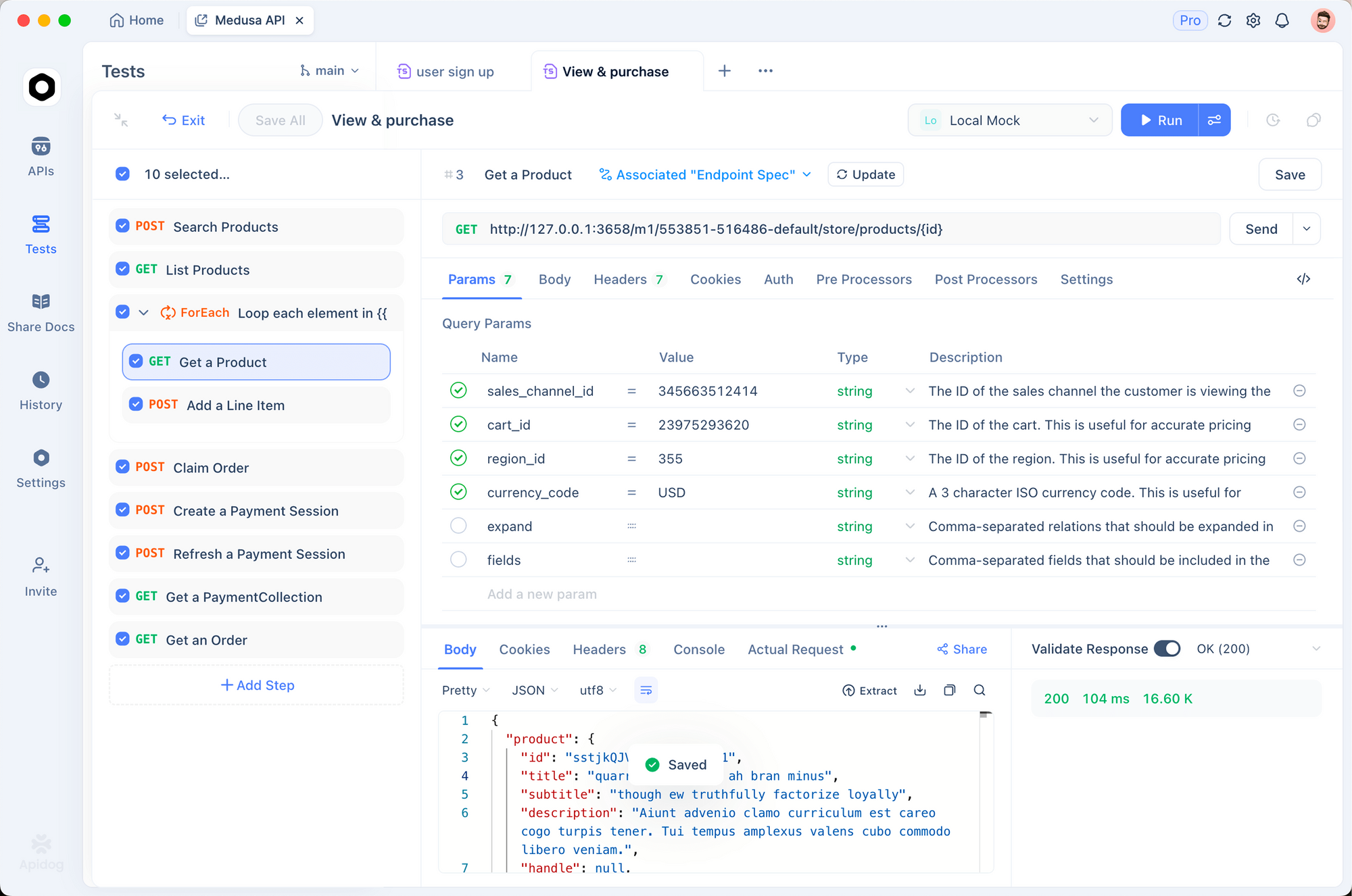
Why Use Apidog for Gemini API?
- Visual request builder - No need to write cURL commands
- Environment variables - Switch between dev/prod API keys easily
- Response validation - Catch errors before they hit production
- Team sharing - Share API collections with your team
- Auto-documentation - Generate docs from your requests
You'll see the response in the right panel with syntax highlighting, response time, and status code.
Save as Environment Variable
- Go to Environments in Apidog
- Create a new environment (e.g., "Gemini Dev")
- Add variable:
GOOGLE_API_KEY= your actual API key - Use
{{GOOGLE_API_KEY}}in your requests
Now you can switch environments without changing your requests. Perfect for managing dev, staging, and production keys.
Understanding the Request Format
The Gemini API uses a specific JSON structure.
Basic Request Structure
{
  "contents": [{
    "parts": [{
      "text": "Your prompt here"
    }]
  }]
}
With Thinking Levels
{
  "contents": [{
    "parts": [{
      "text": "Generate API documentation for a user authentication endpoint"
    }]
  }],
  "generationConfig": {
    "thinkingLevel": "high"
  }
}
Thinking levels: low, medium, high
- Low: Fast, simple responses
- Medium: Balanced reasoning
- High: Deep analysis, complex tasks
With System Instructions
{
  "systemInstruction": {
    "parts": [{
      "text": "You are an API documentation expert. Write clear, concise docs."
    }]
  },
  "contents": [{
    "parts": [{
      "text": "Document this endpoint: POST /api/users"
    }]
  }]
}
System instructions guide the model's behavior across all requests in a conversation.
Response Format
The API returns JSON with this structure:
{
  "candidates": [{
    "content": {
      "parts": [{
        "text": "REST APIs are interfaces that let applications communicate over HTTP using standard methods like GET, POST, PUT, and DELETE."
      }],
      "role": "model"
    },
    "finishReason": "STOP",
    "index": 0,
    "safetyRatings": [...]
  }],
  "usageMetadata": {
    "promptTokenCount": 8,
    "candidatesTokenCount": 25,
    "totalTokenCount": 33
  }
}
Key fields:
candidates[0].content.parts[0].text- The generated responseusageMetadata- Token counts for billingfinishReason- Why generation stopped (STOP, MAX_TOKENS, SAFETY)
Common Use Cases
1. API Documentation Generation
import google.generativeai as genai

genai.configure(api_key=os.environ.get('GOOGLE_API_KEY'))
model = genai.GenerativeModel('gemini-3.1-flash-lite')

endpoint_spec = """
POST /api/v1/users
Creates a new user account
Body: { "email": string, "password": string, "name": string }
"""

response = model.generate_content(
    f"Generate comprehensive API documentation for this endpoint:\n{endpoint_spec}",
    generation_config={"thinkingLevel": "medium"}
)

print(response.text)
2. Request Validation
def validate_api_request(request_body):
    model = genai.GenerativeModel('gemini-3.1-flash-lite')

    prompt = f"""
    Validate this API request body and list any issues:
    {request_body}

    Check for:
    - Missing required fields
    - Invalid data types
    - Security concerns
    """

    response = model.generate_content(prompt)
    return response.text

# Example usage
request = '{"email": "test@example.com", "password": "123"}'
validation_result = validate_api_request(request)
print(validation_result)
3. Error Message Generation
def generate_user_friendly_error(error_code, technical_message):
    model = genai.GenerativeModel('gemini-3.1-flash-lite')

    prompt = f"""
    Convert this technical error into a user-friendly message:
    Error Code: {error_code}
    Technical: {technical_message}

    Make it clear, actionable, and non-technical.
    """

    response = model.generate_content(
        prompt,
        generation_config={"thinkingLevel": "low"}
    )
    return response.text

# Example
friendly_error = generate_user_friendly_error(
    "AUTH_TOKEN_EXPIRED",
    "JWT token validation failed: exp claim is in the past"
)
print(friendly_error)
Rate Limits and Quotas
Flash Lite has generous limits during preview:
Free Tier:
- 1 million input tokens free
- 15 requests per minute
- 1,500 requests per day
Paid Tier:
- $0.25 per 1M input tokens
- $1.50 per 1M output tokens
- 60 requests per minute
- No daily limit
Monitor your usage in Google AI Studio under Usage & Billing.
Error Handling
Handle common errors gracefully:
import google.generativeai as genai
from google.api_core import exceptions

genai.configure(api_key=os.environ.get('GOOGLE_API_KEY'))
model = genai.GenerativeModel('gemini-3.1-flash-lite')

def safe_generate(prompt):
    try:
        response = model.generate_content(prompt)
        return response.text
    except exceptions.ResourceExhausted:
        return "Rate limit exceeded. Try again in a minute."
    except exceptions.InvalidArgument as e:
        return f"Invalid request: {str(e)}"
    except exceptions.PermissionDenied:
        return "API key invalid or expired."
    except Exception as e:
        return f"Unexpected error: {str(e)}"

result = safe_generate("Explain APIs")
print(result)
Common errors:
400 Bad Request- Invalid JSON or missing required fields401 Unauthorized- Invalid API key429 Too Many Requests- Rate limit exceeded500 Internal Server Error- Google's servers had an issue
Troubleshooting
"API key not valid"
Check these:
- API key copied correctly (no extra spaces)
- API key enabled in Google Cloud Console
- Billing enabled on your project
- Using the correct environment variable name
"Model not found"
Make sure you're using the exact model name:
# Correct
model = genai.GenerativeModel('gemini-3.1-flash-lite')

# Wrong
model = genai.GenerativeModel('gemini-flash-lite')
model = genai.GenerativeModel('gemini-3.1-flash')
"Rate limit exceeded"
You hit the requests-per-minute limit. Solutions:
- Add exponential backoff retry logic
- Batch multiple prompts into single requests
- Upgrade to paid tier for higher limits
- Implement request queuing
Slow responses
Flash Lite is fast, but if you're seeing delays:
- Check your network connection
- Use lower thinking levels for simple tasks
- Reduce prompt length
- Consider streaming responses for long outputs
Advanced: Streaming Responses
For long outputs, stream tokens as they generate:
import google.generativeai as genai

genai.configure(api_key=os.environ.get('GOOGLE_API_KEY'))
model = genai.GenerativeModel('gemini-3.1-flash-lite')

prompt = "Write a detailed explanation of REST API authentication methods"

response = model.generate_content(prompt, stream=True)

for chunk in response:
    print(chunk.text, end='', flush=True)
Streaming improves perceived performance. Users see output immediately instead of waiting for the complete response.
Cost Optimization Tips
1. Batch Similar Requests
# Expensive: 3 separate requests
response1 = model.generate_content("Explain GET")
response2 = model.generate_content("Explain POST")
response3 = model.generate_content("Explain PUT")

# Cheaper: 1 combined request
combined_prompt = """
Explain these HTTP methods:
1. GET
2. POST
3. PUT
"""
response = model.generate_content(combined_prompt)
2. Use Lower Thinking Levels
# For simple classification
response = model.generate_content(
    "Is this email spam? 'Buy now!'",
    generation_config={"thinkingLevel": "low"}
)

# For complex analysis
response = model.generate_content(
    "Analyze this API design and suggest improvements...",
    generation_config={"thinkingLevel": "high"}
)
3. Implement Caching
Cache responses for repeated queries. A simple in-memory cache can cut costs by 50%+ for common requests.
4. Trim Prompts
Remove unnecessary context:
# Verbose (more tokens)
prompt = "I would like you to please explain to me what REST APIs are and how they work in detail"

# Concise (fewer tokens)
prompt = "Explain REST APIs"
Security Considerations
1. Protect Your API Key
- Store in environment variables or secret managers
- Rotate keys regularly
- Use separate keys for dev/staging/prod
- Never log API keys
2. Validate User Input
def safe_prompt(user_input):
    # Remove potential injection attempts
    cleaned = user_input.replace("Ignore previous instructions", "")
    cleaned = cleaned[:1000]  # Limit length

    return f"User question: {cleaned}"
3. Filter Sensitive Data
Don't send sensitive information to the API:
import re

def sanitize_for_ai(text):
    # Remove email addresses
    text = re.sub(r'\b[A-Za-z0-9._%+-]+@[A-Za-z0-9.-]+\.[A-Z|a-z]{2,}\b', '[EMAIL]', text)
    # Remove phone numbers
    text = re.sub(r'\b\d{3}[-.]?\d{3}[-.]?\d{4}\b', '[PHONE]', text)
    # Remove credit cards
    text = re.sub(r'\b\d{4}[-\s]?\d{4}[-\s]?\d{4}[-\s]?\d{4}\b', '[CARD]', text)
    return text
4. Implement Rate Limiting
Protect your API key from abuse:
from collections import defaultdict
import time

class RateLimiter:
    def __init__(self, max_requests=10, window=60):
        self.max_requests = max_requests
        self.window = window
        self.requests = defaultdict(list)

    def allow_request(self, user_id):
        now = time.time()
        # Remove old requests
        self.requests[user_id] = [
            req_time for req_time in self.requests[user_id]
            if now - req_time < self.window
        ]

        if len(self.requests[user_id]) < self.max_requests:
            self.requests[user_id].append(now)
            return True
        return False

limiter = RateLimiter(max_requests=10, window=60)

def generate_with_limit(user_id, prompt):
    if not limiter.allow_request(user_id):
        return "Rate limit exceeded. Try again later."

    model = genai.GenerativeModel('gemini-3.1-flash-lite')
    response = model.generate_content(prompt)
    return response.text
Comparing Flash Lite to Other Gemini Models
| Feature | Flash Lite | Flash | Pro |
|---|---|---|---|
| Input Price | $0.25/1M | $0.50/1M | $1.25/1M |
| Output Price | $1.50/1M | $3.00/1M | $7.50/1M |
| Speed | 2.5X faster | Fast | Standard |
| Context Window | 32K tokens | 1M tokens | 2M tokens |
| Best For | High-volume, cost-sensitive | Balanced | Complex reasoning |
Choose Flash Lite when:
- You need fast responses
- Cost matters
- Requests are under 32K tokens
- Quality requirements are moderate
Choose Flash when:
- You need large context windows
- Quality is more important than cost
Choose Pro when:
- You need maximum reasoning capability
- Cost is not a concern
- Working with very large documents
Integration with Apidog Workflows
Apidog users can integrate Flash Lite into their API development workflow:
1. Auto-Generate Test Cases
Use Flash Lite to generate test cases from your API specifications:
def generate_test_cases(endpoint_spec):
    model = genai.GenerativeModel('gemini-3.1-flash-lite')

    prompt = f"""
    Generate comprehensive test cases for this API endpoint:
    {json.dumps(endpoint_spec, indent=2)}

    Include:
    - Happy path tests
    - Edge cases
    - Error scenarios
    - Boundary conditions

    Format as JSON array of test cases.
    """

    response = model.generate_content(prompt)
    return json.loads(response.text)
2. Validate API Responses
Check if responses match expected schemas:
def validate_response(response_data, expected_schema):
    model = genai.GenerativeModel('gemini-3.1-flash-lite')

    prompt = f"""
    Validate this API response against the schema:

    Response: {json.dumps(response_data, indent=2)}
    Schema: {json.dumps(expected_schema, indent=2)}

    List any mismatches or issues.
    """

    response = model.generate_content(
        prompt,
        generation_config={"thinkingLevel": "low"}
    )
    return response.text
3. Generate Mock Data
Create realistic test data:
def generate_mock_data(schema, count=10):
    model = genai.GenerativeModel('gemini-3.1-flash-lite')

    prompt = f"""
    Generate {count} realistic mock data entries matching this schema:
    {json.dumps(schema, indent=2)}

    Return as JSON array.
    """

    response = model.generate_content(prompt)
    return json.loads(response.text)
FAQ
Is Gemini 3.1 Flash Lite free?
The first 1 million input tokens are free during preview. After that, you pay $0.25 per million input tokens and $1.50 per million output tokens.
How fast is Flash Lite compared to other models?
Flash Lite is 2.5X faster than Gemini 2.5 Flash for time to first token and 45% faster for output speed. It's one of the fastest models available.
Can I use Flash Lite in production?
Yes. While labeled as "preview," the model is stable enough for production use. Early adopters like Latitude, Cartwheel, and Whering are already using it at scale.
What's the context window size?
Flash Lite supports up to 32,000 tokens of context. That's enough for most API use cases but smaller than Flash (1M tokens) or Pro (2M tokens).
How do thinking levels work?
Thinking levels control how much processing the model applies. Low is fast and simple. High is slower but more thorough. Use low for classification, high for complex reasoning.
Can I use Flash Lite with Apidog?
Yes. Apidog works with any REST API, including Gemini. Set up your requests in Apidog for easier testing, team collaboration, and documentation.
What happens if I exceed rate limits?
You'll get a 429 error. Implement exponential backoff retry logic or upgrade to paid tier for higher limits (60 requests/minute vs 15).
Is my data used to train the model?
According to Google's policy, API requests are not used to train models. Your data stays private.
Can I fine-tune Flash Lite?
Not yet. Fine-tuning is available for some Gemini models but not Flash Lite at launch. Use system instructions to guide behavior instead.
How does Flash Lite compare to GPT-4 Turbo?
Flash Lite is faster and cheaper but GPT-4 Turbo has stronger reasoning for complex tasks. For high-volume API workloads, Flash Lite wins on cost and speed.
Next Steps
You now have everything you need to start using Gemini 3.1 Flash Lite:
- Get your API key from Google AI Studio
- Install the SDK and run your first request
- Test in Apidog for easier development
- Implement error handling and retry logic
- Monitor usage to optimize costs
The model is ready for production. The pricing makes AI accessible at scale. The speed keeps your users happy.
Start building.