
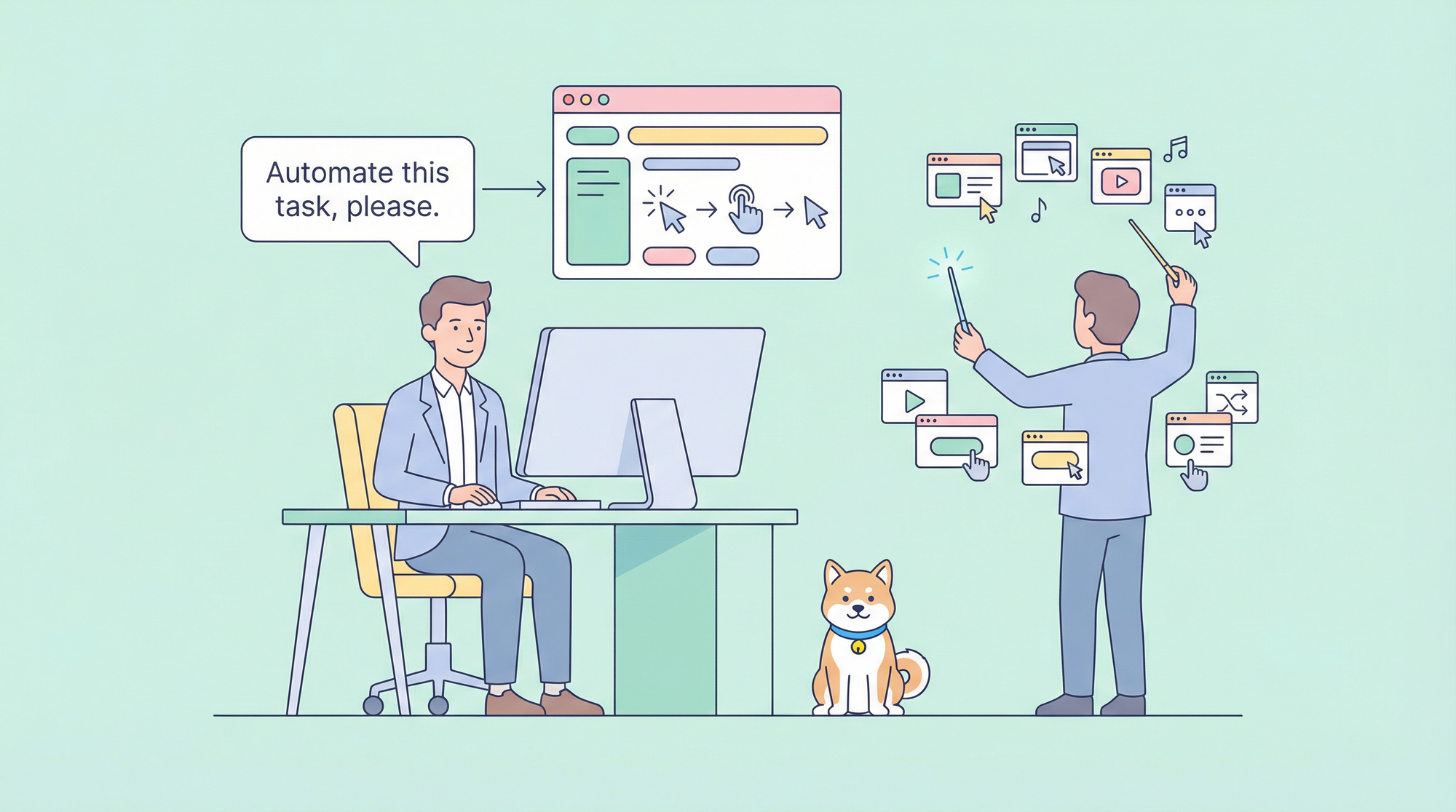
لطالما تطلبت أتمتة المتصفح كتابة سكربتات معقدة، وإدارة المحددات، والتعامل مع حالات الصفحة غير المتوقعة. يغير Claude Code هذه العملية من خلال السماح لك بوصف ما تريده باللغة الطبيعية وجعل الذكاء الاصطناعي يترجمه إلى إجراءات متصفح دقيقة.
ما الذي يجعل أتمتة المتصفح باستخدام Claude Code قوية:
- التحكم باللغة الطبيعية: أخبر كلود "انقر على زر تسجيل الدخول" بدلاً من كتابة كود المحددات
- التكيف الذكي: يفهم الذكاء الاصطناعي السياق ويتكيف مع تغييرات الصفحة
- الفهم البصري: يوفر شجرة إمكانية الوصول (Accessibility tree) وأوضاع اللقطة (snapshot modes) استهدافًا موثوقًا للعناصر
- دعم عبر المتصفحات: يعمل مع Chromium و Firefox و WebKit
- تكامل سلس: يعمل مباشرة ضمن سير عمل التطوير الخاص بك
يغطي هذا الدليل كل شيء بدءًا من الإعداد الأساسي وحتى أنماط الأتمتة المتقدمة باستخدام خوادم MCP (بروتوكول سياق النموذج).
فهم خيارات أتمتة المتصفح
يقدم Claude Code عدة طرق لأتمتة المتصفح، كل منها مناسب لحالات استخدام مختلفة.
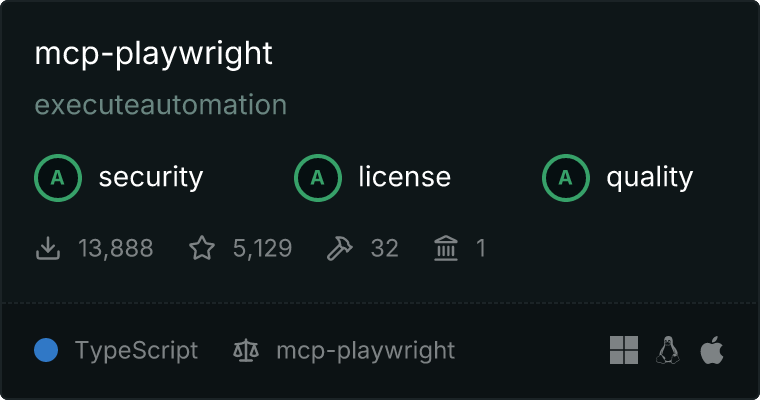
الخيار 1: Playwright MCP (موصى به)
Playwright MCP من Microsoft هو النهج الموصى به لأتمتة المتصفح باستخدام Claude Code. يوفر ما يلي:
- دعم رسمي: يتم صيانته من قبل Microsoft
- متعدد المتصفحات: يعمل مع Chromium و Firefox و WebKit
- وضع شجرة إمكانية الوصول: استهداف موثوق للعناصر بدون محددات هشة
- تطوير نشط: تحديثات وتحسينات منتظمة
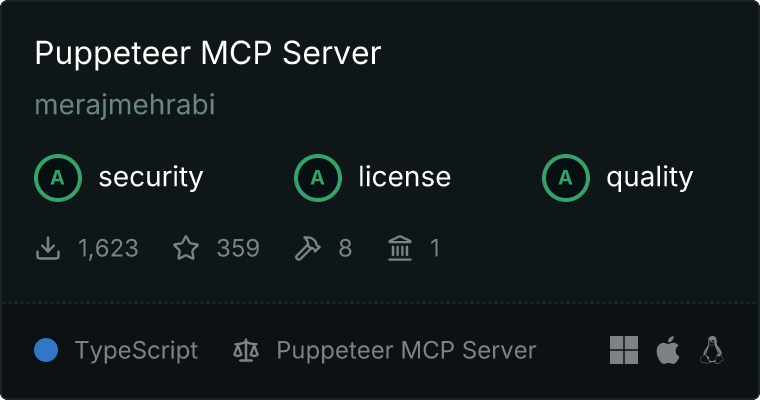
الخيار 2: Puppeteer MCP (المجتمع)
في حين تم إهمال حزمة Puppeteer MCP الرسمية، توجد بدائل يتم صيانتها من قبل المجتمع:
- واجهة برمجة تطبيقات مألوفة: إذا كنت تعرف Puppeteer بالفعل
- التركيز على Chrome: مُحسَّن لمتصفح Chrome/Chromium
- دعم الأنظمة القديمة: لمهام سير العمل الحالية المستندة إلى Puppeteer
الخيار 3: Claude Computer Use API
للتحكم الكامل في سطح المكتب بما يتجاوز المتصفحات فقط:
- وصول كامل إلى سطح المكتب: التحكم في أي تطبيق
- مبني على لقطات الشاشة: فهم بصري لمحتوى الشاشة
- تكامل API: بناء حلول أتمتة مخصصة
جدول المقارنة
| الميزة | Playwright MCP | Puppeteer MCP | Computer Use API |
|---|---|---|---|
| دعم المتصفح | Chromium, Firefox, WebKit | Chromium فقط | أي متصفح |
| الصيانة | Microsoft (رسمي) | المجتمع | Anthropic |
| استهداف العنصر | شجرة إمكانية الوصول | محددات CSS | بصري/إحداثيات |
| الوضع الخفي (Headless Mode) | نعم | نعم | لا (يتطلب شاشة عرض) |
| الأفضل لـ | اختبار الويب، استخراج البيانات | المشاريع القديمة | أتمتة سطح المكتب |
إعداد Playwright MCP
Playwright MCP هو الطريقة الموصى بها لإضافة أتمتة المتصفح إلى Claude Code. إليك كيفية إعداده.
المتطلبات الأساسية
- Node.js 18 أو أحدث
- تم تثبيت Claude Code CLI
- npm أو npx متاح
الخطوة 1: تهيئة خادم MCP
أضف Playwright MCP إلى تكوين Claude Code الخاص بك. أنشئ أو عدّل ملف .claude/settings.json:
{
  "mcpServers": {
    "playwright": {
      "command": "npx",
      "args": ["@playwright/mcp@latest"],
      "env": {
        "PLAYWRIGHT_BROWSERS_PATH": "0"
      }
    }
  }
}
الخطوة 2: التحقق من التثبيت
ابدأ تشغيل Claude Code وتحقق من أن خادم MCP قيد التشغيل:
claude
يجب أن ترى Playwright MCP مدرجًا في الأدوات المتاحة. اختبره بأمر بسيط:
Navigate to https://example.com and tell me the page title
الخطوة 3: تهيئة خيارات المتصفح
لمزيد من التحكم، قم بتخصيص إعدادات خادم MCP:
{
  "mcpServers": {
    "playwright": {
      "command": "npx",
      "args": [
        "@playwright/mcp@latest",
        "--browser", "chromium",
        "--headless"
      ],
      "env": {
        "PLAYWRIGHT_BROWSERS_PATH": "0"
      }
    }
  }
}
الخيارات المتاحة:
--browser: اخترchromium،firefox، أوwebkit--headless: تشغيل بدون نافذة متصفح مرئية--port: تحديد منفذ مخصص (افتراضي: يتم تعيينه تلقائيًا)--host: الربط بمضيف محدد (افتراضي: localhost)
الخطوة 4: التشغيل في CI/CD
لخطوط الأنابيب المؤتمتة، استخدم الوضع الخفي (headless mode):
{
  "mcpServers": {
    "playwright": {
      "command": "npx",
      "args": [
        "@playwright/mcp@latest",
        "--headless",
        "--browser", "chromium"
      ]
    }
  }
}
بديل: Puppeteer MCP
إذا كنت تفضل Puppeteer أو لديك مهام سير عمل موجودة تعتمد على Puppeteer، يمكنك استخدام خوادم MCP التي يحتفظ بها المجتمع.
التثبيت
استخدم خادم Puppeteer MCP المجتمعي:
{
  "mcpServers": {
    "puppeteer": {
      "command": "npx",
      "args": ["-y", "puppeteer-mcp-server"]
    }
  }
}
بديل: puppeteer-mcp-claude
خيار آخر من المجتمع مع أتمتة متصفح شاملة:
# Clone the repository
git clone https://github.com/jaenster/puppeteer-mcp-claude.git
cd puppeteer-mcp-claude
npm install
قم بالتهيئة في .claude/settings.json:
{
  "mcpServers": {
    "puppeteer": {
      "command": "node",
      "args": ["/path/to/puppeteer-mcp-claude/index.js"]
    }
  }
}
الاختلافات الرئيسية عن Playwright
| الجانب | Playwright MCP | Puppeteer MCP |
|---|---|---|
| الإعداد | npx (بدون تثبيت) | قد يتطلب تثبيت npm |
| المتصفحات | متعددة | Chrome/Chromium |
| استراتيجية المحددات | شجرة إمكانية الوصول | CSS/XPath |
| الصيانة | Microsoft | المجتمع |
أوامر أتمتة المتصفح الأساسية
بمجرد تهيئة خادم MCP الخاص بك، يمكنك التحكم في المتصفحات باستخدام اللغة الطبيعية.
التنقل
Navigate to https://github.com
Go to the login page on github.com
Open https://docs.example.com/api in a new tab
التفاعل مع العناصر
Click the "Sign In" button
Type "my-username" in the email field
Select "United States" from the country dropdown
Check the "Remember me" checkbox
قراءة محتوى الصفحة
Get the text content of the main heading
List all links on the current page
Extract the product prices from this page
أخذ لقطات الشاشة
Take a screenshot of the current page
Capture a screenshot of just the navigation menu
الانتظار والتوقيت
Wait for the loading spinner to disappear
Wait 3 seconds then click the submit button
Wait until the "Success" message appears
معالجة النماذج
Fill out the contact form:
- Name: John Doe
- Email: john@example.com
- Message: Testing automation
Then submit the form
التفاعلات المعقدة
Scroll down to the footer and click the "Privacy Policy" link
Hover over the "Products" menu and click "Enterprise"
Drag the slider to the 75% position
أنماط الأتمتة المتقدمة
النمط 1: مهام سير العمل متعددة الخطوات
إنشاء تسلسلات أتمتة معقدة:
Automate the following checkout flow:
1. Navigate to https://shop.example.com
2. Search for "wireless headphones"
3. Click on the first product result
4. Select size "Medium" if available
5. Click "Add to Cart"
6. Go to cart and verify the item is there
7. Take a screenshot of the cart
النمط 2: استخراج البيانات
استخراج البيانات المهيكلة من صفحات الويب:
Go to https://news.ycombinator.com and extract the top 10 stories with:
- Title
- URL
- Points
- Number of comments
- Posted time ago

Format as JSON
النمط 3: تدفقات المصادقة
التعامل مع تسلسلات تسجيل الدخول:
Log into the application:
1. Navigate to https://app.example.com/login
2. Enter username: test@example.com
3. Enter password from environment variable LOGIN_PASSWORD
4. Click Sign In
5. Wait for dashboard to load
6. Verify login succeeded by checking for "Welcome" text
النمط 4: اختبار الانحدار البصري
مقارنة حالات الصفحة:
1. Navigate to https://staging.example.com
2. Take a full-page screenshot named "staging-homepage"
3. Navigate to https://production.example.com
4. Take a full-page screenshot named "production-homepage"
5. Compare the two screenshots and report any differences
النمط 5: المراقبة والتنبيه
إنشاء مهام سير عمل المراقبة:
Check if the service is healthy:
1. Navigate to https://status.example.com
2. Look for "All Systems Operational" text
3. If not found, extract the current status message
4. Take a screenshot for documentation
5. Report the findings
النمط 6: اختبار E2E مع التحقق من API
الجمع بين اختبار المتصفح واختبار API:
Test the user registration flow:
1. Navigate to https://app.example.com/register
2. Fill in registration form with test data
3. Submit the form
4. Wait for confirmation page
5. Verify the user was created by checking the API response
6. Take a screenshot of the success page
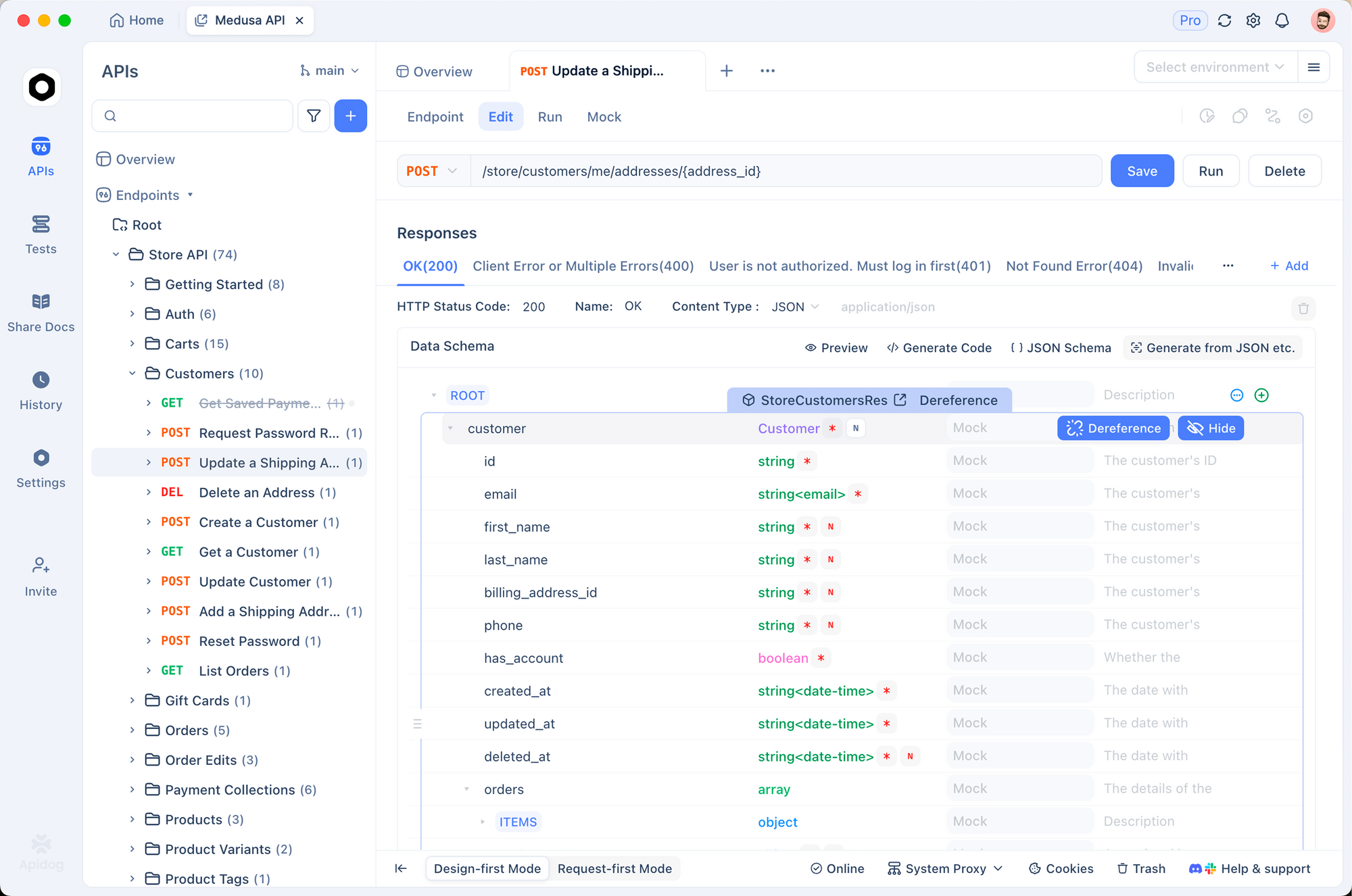
عند اختبار التدفقات التي تتضمن واجهات برمجة التطبيقات، استخدم Apidog للتحقق من استجابات الواجهة الخلفية. يمكنك التحقق من أن إجراءات المتصفح الخاصة بك تؤدي إلى استدعاءات API الصحيحة وتتلقى الاستجابات المتوقعة.
حالات الاستخدام في العالم الحقيقي
حالة الاستخدام 1: لقطات شاشة لمراجعة الكود المؤتمتة
التقاط توثيق مرئي لمراجعات الكود:
For the PR review, capture screenshots of:
1. The login page before changes
2. The login page after changes
3. The error state when invalid credentials are entered
4. The success redirect after valid login

Save all screenshots to ./review-screenshots/
حالة الاستخدام 2: التحليل التنافسي
مراقبة مواقع المنافسين:
Analyze competitor pricing:
1. Navigate to https://competitor.com/pricing
2. Extract all plan names and prices
3. Take a screenshot of the pricing page
4. Compare with our current pricing data
5. Generate a summary report
حالة الاستخدام 3: اختبار النموذج المؤتمت
اختبار صحة النموذج عبر السيناريوهات:
Test the contact form validation:

Test 1: Empty submission
- Submit empty form
- Verify all required field errors appear
- Screenshot: empty-form-errors.png

Test 2: Invalid email
- Enter "John" in name
- Enter "invalid-email" in email
- Submit
- Verify email validation error
- Screenshot: invalid-email-error.png

Test 3: Valid submission
- Fill all fields correctly
- Submit
- Verify success message
- Screenshot: form-success.png
حالة الاستخدام 4: تدقيق تحسين محركات البحث (SEO)
أتمتة فحوصات تحسين محركات البحث:
Perform SEO audit on https://mysite.com:
1. Check page title length (should be 50-60 characters)
2. Check meta description exists and length
3. Verify H1 tag exists and is unique
4. Check all images have alt text
5. Verify canonical URL is set
6. Check for broken links on the page
7. Generate audit report
حالة الاستخدام 5: اختبار إمكانية الوصول
أتمتة فحوصات إمكانية الوصول:
Run accessibility audit on https://app.example.com:
1. Navigate to the homepage
2. Check color contrast ratios
3. Verify all interactive elements are keyboard accessible
4. Check ARIA labels are present
5. Verify focus indicators are visible
6. Test with screen reader simulation
7. Generate accessibility report
حالة الاستخدام 6: مراقبة الأداء
تتبع أداء تحميل الصفحة:
Monitor page load performance:
1. Clear browser cache
2. Navigate to https://app.example.com
3. Record time to first contentful paint
4. Record time to interactive
5. Capture network waterfall
6. Take screenshot when fully loaded
7. Compare with baseline metrics
التكامل مع خطوط أنابيب CI/CD
تكامل GitHub Actions
أضف أتمتة المتصفح إلى خط أنابيب CI الخاص بك:
# .github/workflows/e2e-tests.yml
name: E2E Browser Tests

on:
  pull_request:
    branches: [main, develop]

jobs:
  browser-tests:
    runs-on: ubuntu-latest

    steps:
      - uses: actions/checkout@v4

      - name: Setup Node.js
        uses: actions/setup-node@v4
        with:
          node-version: '20'

      - name: Install Playwright Browsers
        run: npx playwright install --with-deps chromium

      - name: Install Claude Code
        run: npm install -g @anthropic-ai/claude-code

      - name: Run Browser Tests
        env:
          ANTHROPIC_API_KEY: ${{ secrets.ANTHROPIC_API_KEY }}
        run: |
          claude --mcp playwright "
            Run the following browser tests:
            1. Navigate to ${{ env.STAGING_URL }}
            2. Test login flow with test credentials
            3. Verify dashboard loads correctly
            4. Take screenshots of each step
            5. Report any failures
          "

      - name: Upload Screenshots
        if: always()
        uses: actions/upload-artifact@v4
        with:
          name: browser-test-screenshots
          path: screenshots/
إنشاء مهارة اختبار المتصفح
أنشئ مهارة قابلة لإعادة الاستخدام لاختبار المتصفح:
---
name: browser-test-runner
version: "1.0.0"
description: Runs browser-based E2E tests using Playwright MCP
user-invocable: true
allowed-tools:
  - Bash
  - Read
  - Write
  - mcp_playwright
---

# Browser Test Runner

Automated browser testing skill using Playwright MCP.

## Usage

```bash
/browser-test-runner --url https://app.example.com --suite smoke
/browser-test-runner --url https://staging.example.com --suite full
Claude Computer Use API
للسيناريوهات التي تتطلب التحكم الكامل في سطح المكتب، توفر واجهة برمجة تطبيقات Claude Computer Use إمكانات أتمتة شاملة.
نظرة عامة
Computer Use هي ميزة تجريبية تسمح لكلود بما يلي:
- التقاط لقطات شاشة للشاشة
- تحريك الفأرة والنقر
- كتابة النصوص
- التمرير والتنقل
الإعداد الأساسي
import anthropic

client = anthropic.Anthropic()

response = client.messages.create(
    model="claude-sonnet-4-20250514",
    max_tokens=1024,
    tools=[
        {
            "type": "computer_20250124",
            "name": "computer",
            "display_width_px": 1920,
            "display_height_px": 1080,
            "display_number": 1
        }
    ],
    messages=[
        {
            "role": "user",
            "content": "Open Chrome and navigate to github.com"
        }
    ],
    betas=["computer-use-2025-01-24"]
)
متى تستخدم Computer Use مقابل MCP
| السيناريو | النهج الموصى به |
|---|---|
| كشط الويب (Web scraping) | Playwright MCP |
| اختبار E2E | Playwright MCP |
| أتمتة تطبيقات سطح المكتب | Computer Use API |
| مهام سير العمل عبر التطبيقات | Computer Use API |
| خطوط أنابيب CI/CD | Playwright MCP (بلا واجهة رسومية) |
| الاختبار البصري | أي منهما |
أفضل ممارسات Computer Use
- تحقق دائمًا من الإجراءات قبل النقر
- استخدم إحداثيات محددة عندما يكون ذلك ممكنًا
- أضف تأخيرات بين الإجراءات السريعة
- نفذ استعادة الأخطاء للنقرات الفائتة
- قلل النطاق إلى الأذونات الضرورية
اعتبارات الأمان
التعامل مع المصادقة
يجب فعل ما يلي:
- استخدام متغيرات البيئة للبيانات السرية
- مسح البيانات السرية بعد الاختبارات
- استخدام حسابات الاختبار، وليس بيانات اعتماد الإنتاج
يجب عدم فعل ما يلي:
- تضمين كلمات المرور في الأوامر بشكل ثابت
- تخزين البيانات السرية في لقطات الشاشة
- مشاركة ملفات حالة المصادقة
# Use environment variables
export TEST_USERNAME="test@example.com"
export TEST_PASSWORD="secure-test-password"
Log in using credentials from environment variables
TEST_USERNAME and TEST_PASSWORD
خصوصية البيانات
يجب فعل ما يلي:
- إخفاء البيانات الحساسة في لقطات الشاشة
- مسح بيانات المتصفح بعد الاختبارات
- استخدام بيئات التشغيل/الاختبار
يجب عدم فعل ما يلي:
- التقاط لقطات شاشة لصفحات تحتوي على بيانات مستخدم حقيقية
- تخزين المعلومات الشخصية
- التشغيل على بيئة الإنتاج ببيانات حقيقية
أمان الشبكة
يجب فعل ما يلي:
- تقييد وصول المتصفح إلى الشبكة
- استخدام قوائم بيضاء للمجالات المسموح بها
- مراقبة طلبات الشبكة
يجب عدم فعل ما يلي:
- السماح بوصول غير مقيد إلى الإنترنت
- تجاهل أخطاء شهادة SSL في الإنتاج
- تنزيل محتوى غير موثوق به
أمان خادم MCP
- التشغيل محليًا عندما يكون ذلك ممكنًا
- تدقيق كود خادم MCP قبل الاستخدام
- تقييد أذونات الأداة إلى الحد الأدنى المطلوب
- مراقبة سجلات خادم MCP بحثًا عن أي شذوذ
الخاتمة
أتمتة المتصفح باستخدام Claude Code تحدث تحولًا في طريقة تعامل المطورين مع اختبار الويب، واستخراج البيانات، والأتمتة. من خلال الجمع بين تعليمات اللغة الطبيعية وخوادم MCP القوية مثل Playwright، يمكنك بناء مهام سير عمل أتمتة متطورة دون كتابة سكربتات معقدة.
للاختبار الشامل، قم بإقران أتمتة متصفح Claude Code بالتحقق من API. قم بتنزيل Apidog مجانًا لبناء مهام سير عمل اختبار كاملة تغطي كلاً من الواجهة الأمامية والخلفية.