Most API tests start their life in a GUI. You click around, add a few assertions, and run them by hand. That works until you need the same tests to run on every push, every night, or inside a pipeline where nobody is watching. At that point you want one command you can type, script, and pipe into CI.
That command is the Apidog CLI. This tutorial walks you through testing a real REST API end to end from your terminal: install the tool, import an API, set up an environment, build a test scenario, run it with assertions, feed it data, and collect reports. Every command and output below comes from a real run on Apidog CLI version 2.2.2 against a live public API, so you can follow along and get the same results.
If you want the visual side of the same platform, you can download Apidog and design the tests in the app first. But everything here stays on the command line.
What you’ll build
You’ll test restful-api.dev, a free public REST API with real CRUD over an /objects resource. By the end you’ll have:
- An Apidog project seeded from an OpenAPI file
- A three-step test scenario that creates an object, reads it back, and deletes it, asserting at each step
- A data-driven run that repeats a request once per row of test data
- CLI, HTML, JSON, and JUnit reports, plus a shareable cloud report
The same flow scales to your own API, and it’s the foundation for running API tests in CI/CD.
Before you start
You need Node.js 16 or newer and an Apidog account. If you’re comparing runners first, the short version is that the Apidog CLI runs full test scenarios and manages API resources as code, which sets it apart from Newman and the Postman CLI.
Step 1: Install and log in
Install the CLI globally from npm:
npm install -g apidog-cli@latest
Confirm it’s there:
apidog --version
# 2.2.2
Now authenticate. Grab a token from the Apidog app under your avatar, Account Settings, API Access Token, then run:
apidog login --with-token <YOUR_TOKEN>
The token is saved to ~/.apidog/config.toml, so you only do this once per machine. Check who you are:
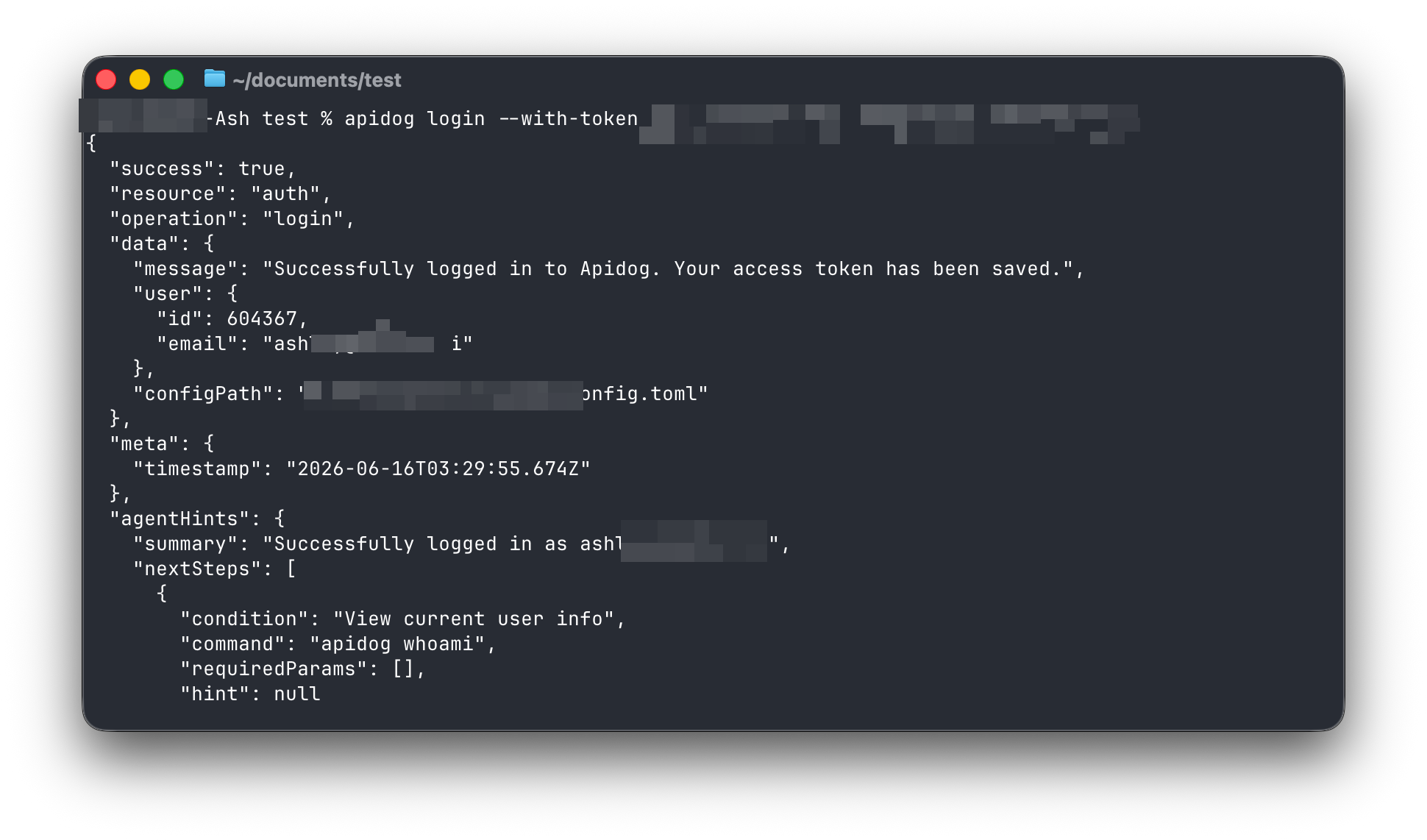
Every command returns structured JSON with a success flag and helpful agentHints, which makes the output easy to script against or pipe into jq.
Step 2: Create a project
Pick the team to create the project under, then create it:
apidog team list
apidog project create --team 329562 --name "CLI Field Test"
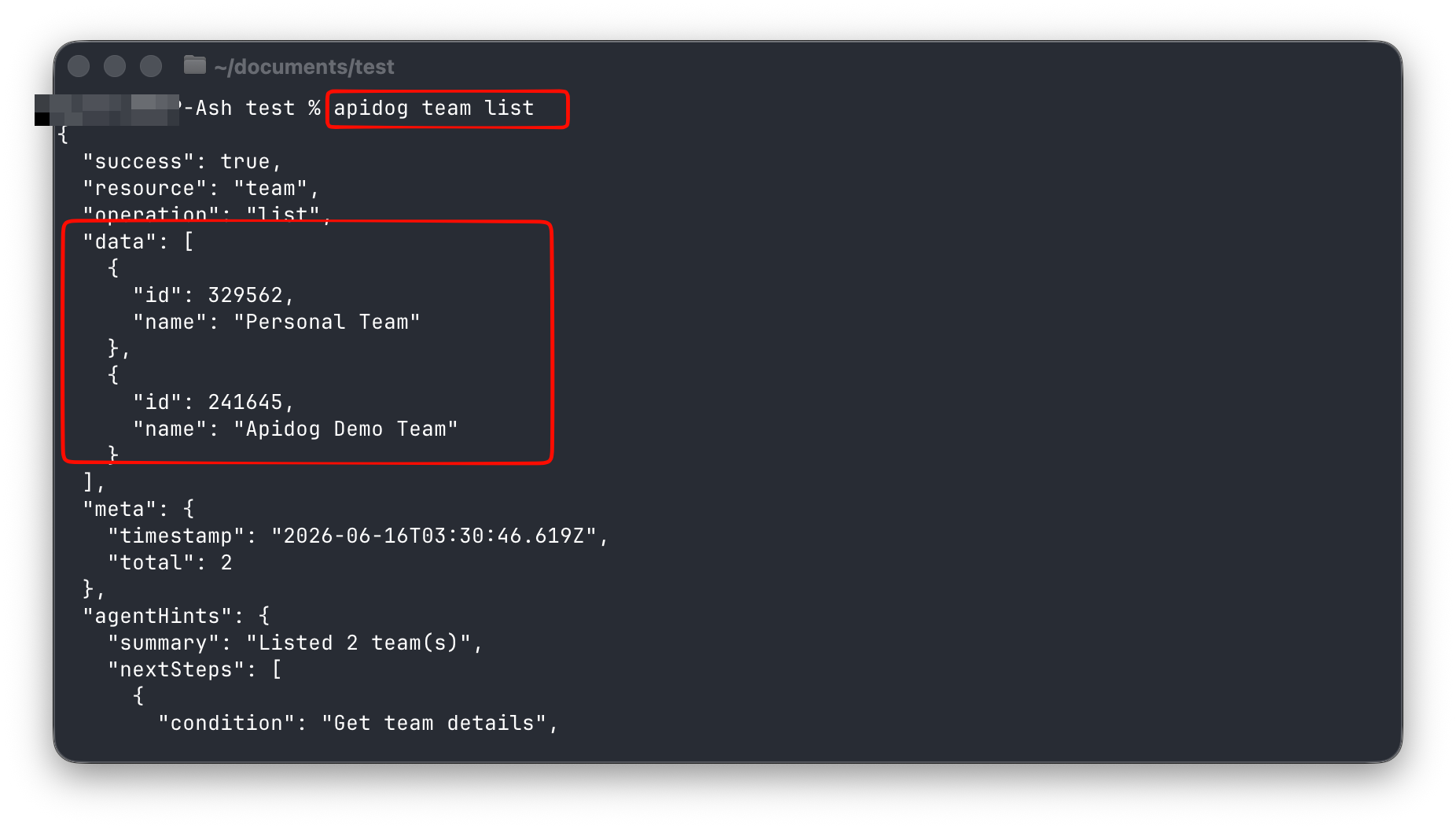
You get back the new project id.
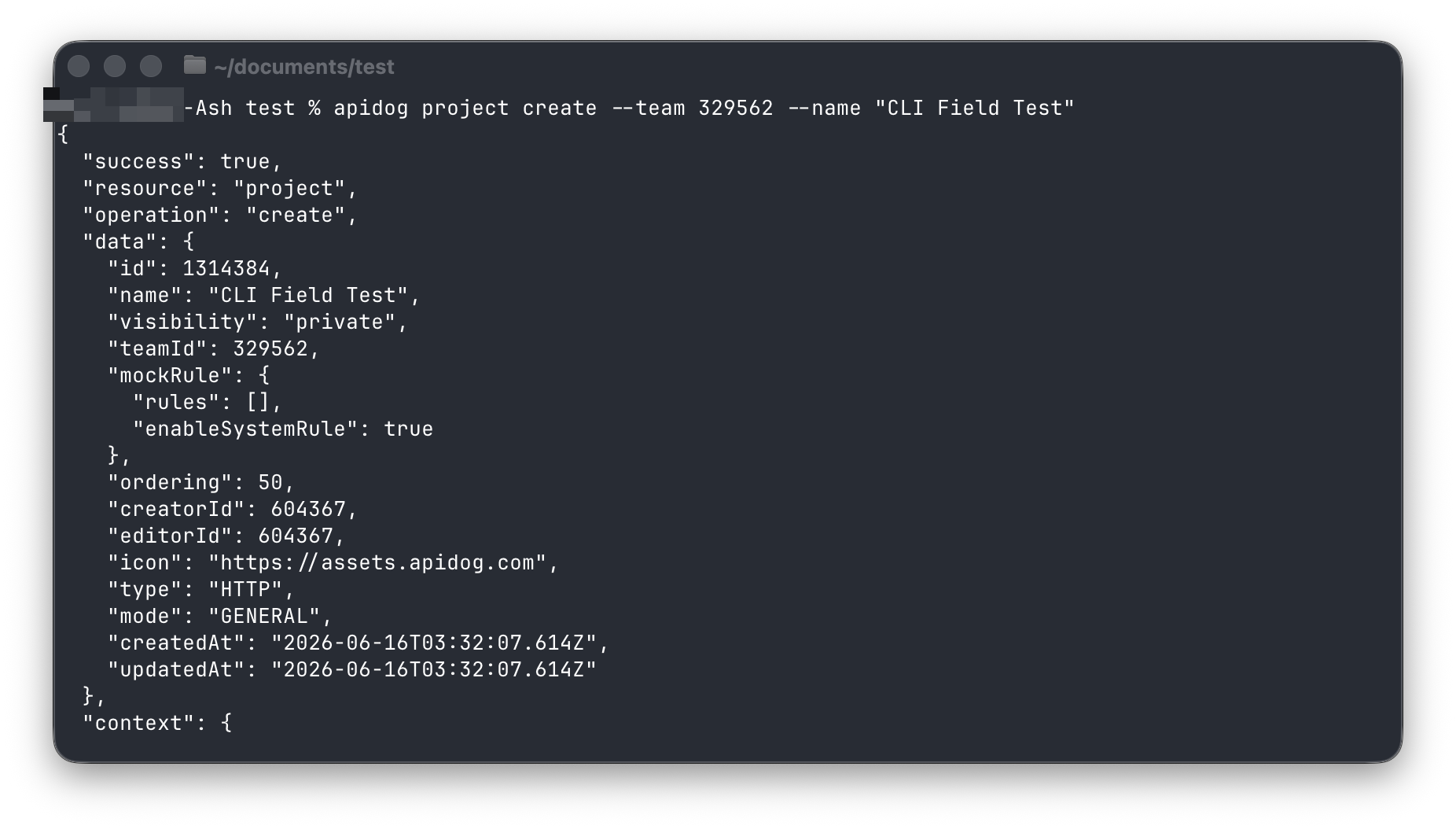
Save it to a shell variable so the rest of this tutorial is copy-paste:
PID=1314366   # replace with your project id
apidog project get $PID
Step 3: Import your REST API
You could create endpoints by hand, but importing an OpenAPI file is faster and mirrors how real projects start. Here’s a small spec describing the /objects CRUD endpoints (save it as objects-api.openapi.json):
{
  "openapi": "3.0.3",
  "info": { "title": "Objects API", "version": "1.0.0" },
  "servers": [{ "url": "https://api.restful-api.dev" }],
  "paths": {
    "/objects": {
      "get":  { "summary": "List objects" },
      "post": { "summary": "Create object" }
    },
    "/objects/{id}": {
      "get":    { "summary": "Get object by id" },
      "put":    { "summary": "Update object" },
      "delete": { "summary": "Delete object" }
    }
  }
}
Import it:
apidog import --project $PID --format openapi --file ./objects-api.openapi.json
# "createCount": 5  (5 endpoints created, 0 errors)
The importer also reads openapi, postman, har, insomnia, jmeter, and more. List what landed:
apidog endpoint list --project $PID
# 37921721 get    /objects
# 37921722 post   /objects
# 37921723 get    /objects/{id}
# 37921724 put    /objects/{id}
# 37921725 delete /objects/{id}
Step 4: Set up an environment
An environment holds the base URL and any variables your tests reuse. Create one and save its id:
apidog environment create "Production" --project $PID --base-url "https://api.restful-api.dev"
apidog environment list --project $PID
# { "id": 6334917, "name": "Production", "baseUrls": { "default": "https://api.restful-api.dev" } }
ENV=6334917   # replace with your environment id
You’ll pass -e $ENV to the run command later so the test knows where to send requests.
Step 5: Get past the automation write-gate
Here’s the first thing that trips people up. Test scenarios and test data are automation resources, and writing them to your main branch from an external tool is blocked by default:
apidog test-scenario create --project $PID --name "x" --description "" --folder-id 0 --priority 1
# "error": { "code": "403075", "message": "Automation caller branch required" }
This is a guardrail, not a bug. You have two ways through it:
- Turn on direct edit permission in the Apidog desktop app under Project Settings, Feature Settings, AI Feature Settings, External AI Edit Permissions.
- Work on an AI branch, which keeps automation changes isolated until you choose to merge. This path stays fully on the command line, so that’s what we’ll use.
Create the branch from main:
apidog branch create --project $PID --type ai \
  --name "ai/20260616-from-main-cli-field-test" --from main
BR="ai/20260616-from-main-cli-field-test"
The naming pattern ai/YYYYMMDD-from-<source>-<feature> is the convention the CLI expects. Note that import, environment create, and endpoint edits are not gated; only the automation resources are.
Step 6: Build a test scenario
A scenario is an ordered flow of requests with assertions between them. You create the shell first, then add steps. Create it on your AI branch:
apidog test-scenario create --project $PID --branch "$BR" \
  --name "Object CRUD lifecycle" \
  --description "Create, read, then delete an object and assert each step" \
  --folder-id 0 --priority 1
SID=1836498   # the returned scenario id
Steps are added through update with a JSON file. The golden rule with any JSON write is to validate before you send it, so you never push a malformed payload:
apidog cli-schema get      test-scenario-update          # see the exact shape
apidog cli-schema validate test-scenario-update --file ./steps-crud.json
# "data file is valid"
Each step is a request plus a small script that asserts the response and hands data to the next step. Here’s the shape of the create step, which posts a new object and saves its id for later steps:
{
  "type": "customHttp",
  "name": "Create object",
  "customHttpRequest": {
    "path": "https://api.restful-api.dev/objects",
    "method": "post",
    "requestBody": { "type": "json", "data": "{\"name\":\"Apidog CLI Field Test\",\"data\":{\"price\":42}}" },
    "postProcessors": [{
      "type": "customScript",
      "data": "pm.test('create returns 200', function () { pm.response.to.have.status(200); });\nvar body = pm.response.json();\npm.globals.set('objId', body.id);",
      "enable": true
    }],
    "projectId": 1314366
  }
}
The next steps reuse {{objId}} in the URL to fetch and then delete the same object. Apply the full three-step file:
apidog test-scenario update $SID --project $PID --branch "$BR" --file ./steps-crud.json
# "success": true
You don’t have to author scenarios as JSON. Building them visually in Apidog and running them from the CLI is just as valid. The JSON path matters when you want your tests version-controlled and reviewed like any other code.
Step 7: Run it from the command line
This is the payoff. Run the scenario with the CLI reporter:
apidog run -t $SID --project $PID --branch "$BR" -e $ENV -r cli
❏ Object CRUD lifecycle
↳ Create object        POST .../objects [200 OK]
  ✓ create returns 200   ✓ response has an id   ✓ name was echoed back
↳ Get the created object  GET .../objects/ff80...3de [200 OK]
  ✓ get returns 200   ✓ id matches the created object   ✓ price persisted in data
↳ Delete the object    DELETE .../objects/ff80...3de [200 OK]
  ✓ delete returns 200

  Http Requests  3 / 0 failed
  Assertions     7 / 0 failed
Three requests, seven assertions, zero failures, and the created id flowed from the first step into the next two. That’s a complete API test running without a single click.
Want files instead of console output? Ask for several reporters at once and point them at a folder:
apidog run -t $SID --project $PID --branch "$BR" -e $ENV \
  -r cli,html,json,junit --out-dir ./reports --out-file "crud-report"
ls ./reports
# crud-report.html  crud-report.json  crud-report.xml
The JUnit XML is what your CI server reads to show pass/fail per build. The HTML report is the one you share with teammates.
Step 8: Run the same test against many inputs
Real test suites cover more than one case. Data-driven runs repeat a scenario once per row of data, so you test ten inputs without writing ten scenarios. This is the same idea as parameterized testing from CSV and JSON.
Put your rows in a file:
[
  { "name": "Pixel 8 Pro", "price": 999 },
  { "name": "iPhone 15", "price": 899 },
  { "name": "Galaxy S24", "price": 799 }
]
Reference the data with -d, and let the scenario read {{name}} and {{price}} from each row:
apidog run -t $DID --project $PID --branch "$BR" -e $ENV -d ./objects-data.json -r cli
Iteration 1/3 … ✓ row created (200) ✓ name matches the data row
Iteration 2/3 … ✓ row created (200) ✓ name matches the data row
Iteration 3/3 … ✓ row created (200) ✓ name matches the data row
  Iterations 3 / 0 failed   Assertions 6 / 0 failed
Three rows in, three iterations out. Swap the file for a CSV and nothing else changes.
Step 9: Collect reports
Local runs write files. To get a report your whole team can open in a browser, add --upload-report:
apidog run -t $SID --project $PID --branch "$BR" -e $ENV -r cli --upload-report
# Apidog CLI runs data uploaded to the cloud successfully.
# https://app.apidog.com/link/project/1314366/api-test/test-report/2605398
One catch worth knowing: a cloud report is tagged with the branch it ran on. Since this run happened on your AI branch, a plain apidog test-report list --project $PID (which targets main) won’t show it. Fetch it by the id from the upload link instead:
apidog test-report get 2605398 --project $PID
apidog test-report download 2605398 --project $PID --format json --output ./cloud-report.json
Step 10: Export your API as docs or a spec
The CLI also pushes data out. Export the project as an OpenAPI file, Markdown, or HTML docs:
apidog export --project $PID --format openapi --oas-version 3.0 --output ./openapi-export.json
apidog export --project $PID --format markdown --output ./api-docs.md
apidog export --project $PID --format html --output ./api-docs.html
This is handy for committing a fresh spec on every change or publishing static docs from a pipeline.
Step 11: Wire it into CI/CD
Everything you ran by hand becomes three lines in a pipeline. The core is install, then run with the JUnit reporter so the CI server can read results:
- run: npm install -g apidog-cli@latest
- run: apidog login --with-token $APIDOG_TOKEN
- run: apidog run -t $SID --project $PID -e $ENV -r junit --out-dir ./reports
Store the token as a secret, and fail the build when a test fails (the CLI returns a non-zero exit code on failures). For a full, copy-paste workflow, see the guide on running Apidog CLI tests in GitHub Actions, or browse API test automation tools that fit a pipeline.
Wrapping up
You went from an empty terminal to a passing, data-driven API test with shareable reports, and you never left the command line. The pattern is always the same: import or design your API, create an environment, build a scenario with assertions, then run it with apidog run. Once that command works locally, dropping it into CI is a three-line change.
Point the same steps at your own API, commit the scenario files alongside your code, and your tests run anywhere a shell does. Download Apidog to get started, and keep the curl alternatives for REST API testing handy for the quick one-off checks the CLI is overkill for.