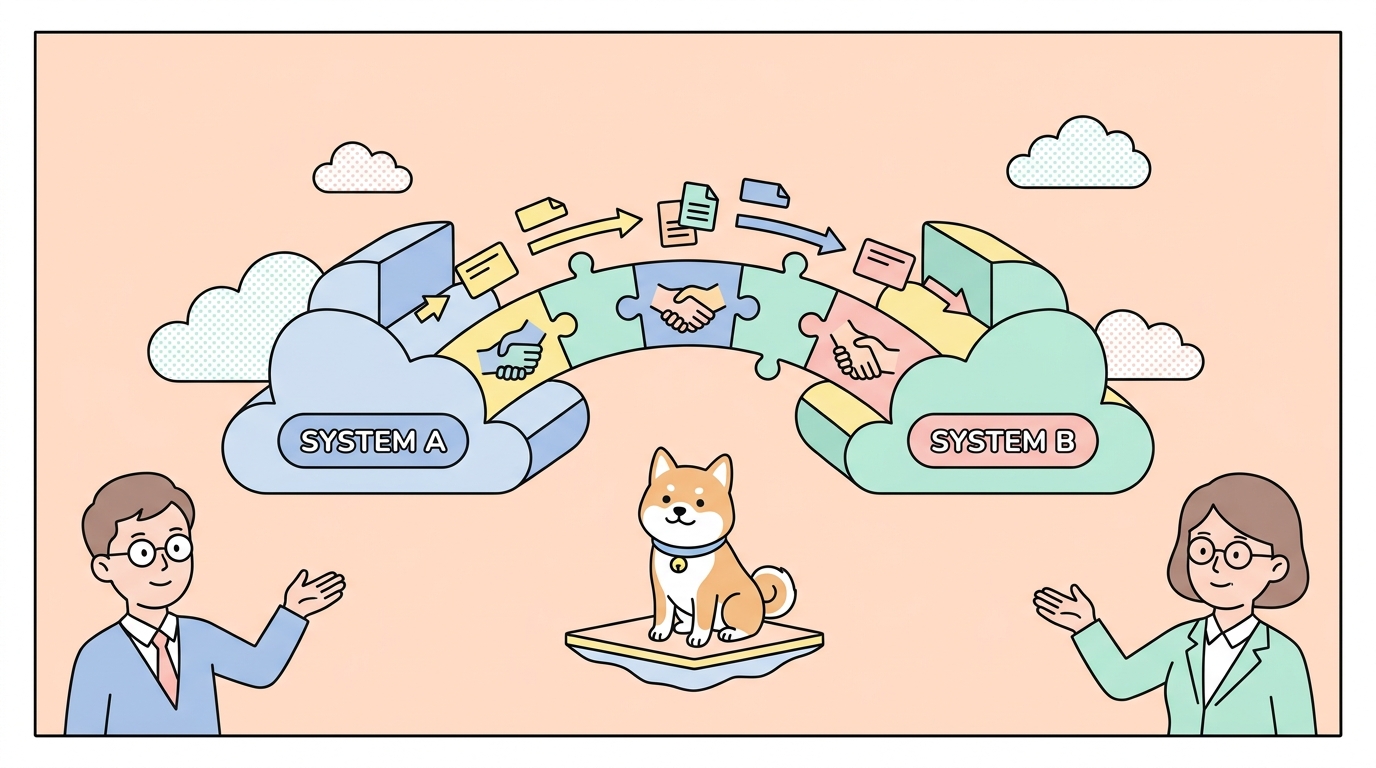
You built a solid test scenario for your checkout endpoint. It chains three requests, asserts on each response, and passes every time you click Run. Then your pipeline needs it to cover forty input combinations, pull the data from a file your QA lead maintains, and run the same scenario against staging and production with different credentials. The point-and-click run that worked on your laptop doesn’t translate to that, and you don’t want to clone the scenario forty times.
That last mile is what the command line handles. With Apidog, you author a test scenario once in the visual builder, then drive it from a terminal with the apidog-cli package. The flag that turns one scenario into a data-driven run is -d, short for --iteration-data. It takes a CSV file, a JSON file, or a data set you’ve stored in your Apidog project, and it runs the scenario once per row, binding each row’s values to the variables your requests reference.
How the -d flag reads a file
The whole feature lives in one option. Here’s the long and short form, straight from apidog run --help:
-d, --iteration-data <path|testDataId> Define the data which use for iterations (either JSON or CSV)
That <path|testDataId> is the detail most people miss. The argument is overloaded. Pass it a path and the CLI reads a local file off disk. Pass it a test-data ID and the CLI pulls a data set you’ve saved inside your Apidog project. Same flag, two sources, and the runner figures out which one you handed it.
The local-file form is the common starting point. Point it at a file relative to where you run the command:
apidog run --access-token $APIDOG_ACCESS_TOKEN \
  -t 605067 -e 1629989 \
  -d ./test-data/checkout-cases.csv -r cli
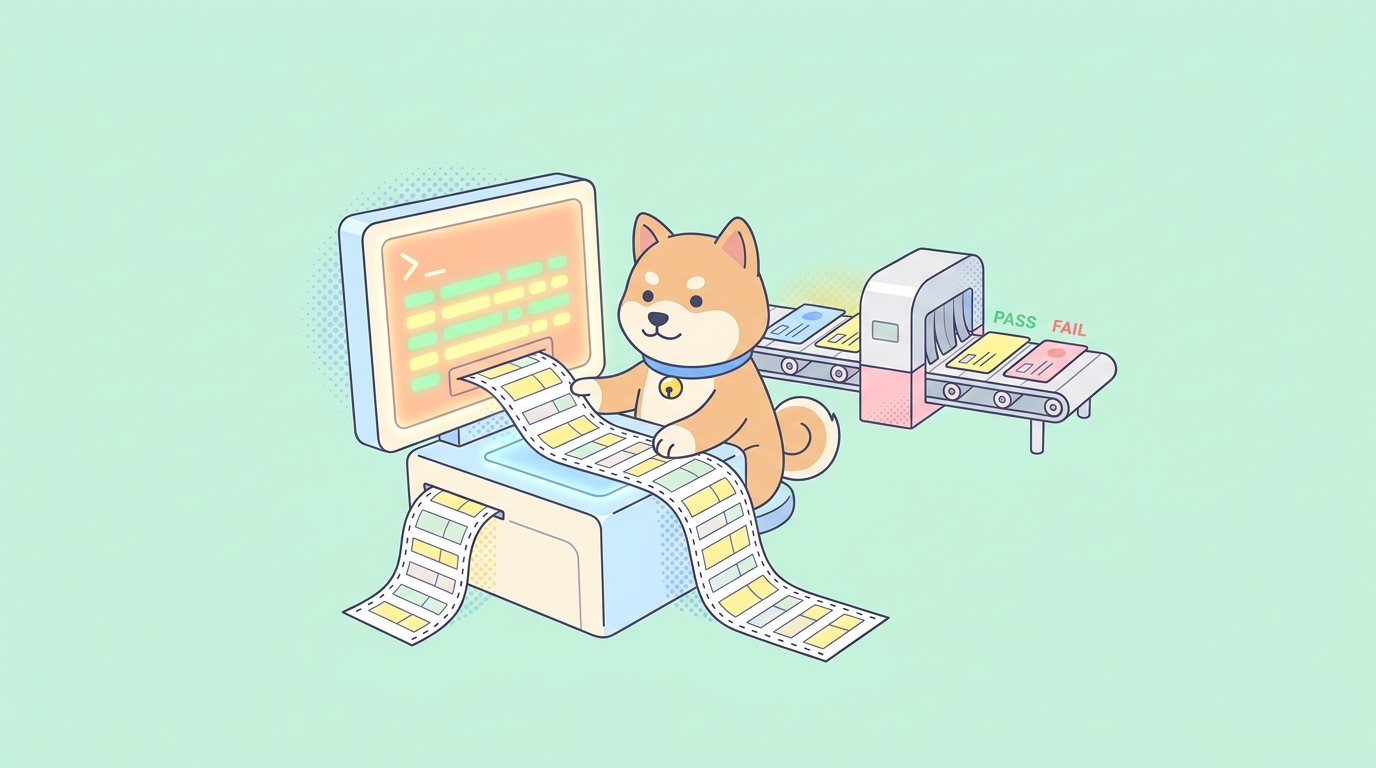
The CLI opens checkout-cases.csv, counts the rows under the header, and runs scenario 605067 once per row. On each pass it binds the columns to the matching variables in your requests, fires the scenario, and records that iteration’s result. Forty rows, forty passes, one scenario.
The format follows the file. The same flag accepts JSON without any extra option:
apidog run --access-token $APIDOG_ACCESS_TOKEN \
  -t 605067 -e 1629989 \
  -d ./test-data/checkout-cases.json -r cli
You don’t tell the CLI which format you’re using. It reads the extension and the file shape. That means you can swap a CSV for a JSON array mid-project without touching the command, as long as the column names and the JSON keys line up with the variables your scenario expects.
What the CLI expects inside each file
CSV is the format for flat, tabular cases. The header row names your variables. Every row below it is one iteration. Here’s a real checkout-cases.csv for a discount endpoint:
sku,quantity,coupon,expected_status,expected_total
DESK-01,1,SAVE10,200,89.10
DESK-01,0,SAVE10,422,0
CHAIR-09,3,,200,447.00
DESK-01,1,EXPIRED,410,0
GHOST-99,1,SAVE10,404,0
Five columns become five variables. Inside the request body you write {{sku}} and {{quantity}}; in the assertions you compare the response against {{expected_status}} and {{expected_total}}. The runner binds them per row. The empty coupon cell in row three becomes an empty string, which is exactly the no-coupon case you want to cover.
JSON is the format when your cases carry nested structure that flattens badly into columns. The file is an array of objects, one object per iteration:
[
  {
    "label": "valid order, two items",
    "order": {
      "items": [
        { "sku": "DESK-01", "qty": 1 },
        { "sku": "CHAIR-09", "qty": 2 }
      ],
      "shipping": { "country": "US", "method": "ground" }
    },
    "expected_status": 200
  },
  {
    "label": "unshippable country",
    "order": {
      "items": [{ "sku": "DESK-01", "qty": 1 }],
      "shipping": { "country": "ZZ", "method": "ground" }
    },
    "expected_status": 422
  }
]
Inside the scenario you reference {{order}} and {{expected_status}} the same way, and the runner hands each object’s fields to the iteration. The label field is for you. It shows up in the report so a failed pass reads “unshippable country” instead of “iteration 2,” which is the difference between a five-second diagnosis and a five-minute one.
A few rules keep these files from biting you in CI:
- Keep the header names identical to the variable names in your scenario. A column called
qtywon’t bind to a request that reads{{quantity}}. This mismatch is the most common reason a data-driven run passes locally and produces empty values in the pipeline. - Quote any CSV field that contains a comma, or move that file to JSON. A free-text field with a comma in it splits into two columns and shifts every value after it.
- Put the expected result in the data, not the scenario. Row one expects 200, row four expects 410. If you hardcode the expectation in the assertion, you’re back to one scenario per case.
- Commit these files next to your test config so they version with the code they exercise. The data file is part of the test, not a loose artifact.
For the JSONPath side of writing assertions that read these bound values, setting assertions and extracting variables from a JSON response walks through the syntax in detail.
Running from a stored data set instead of a file
The second form of -d is the one that doesn’t show up in most walkthroughs. Instead of a path, you pass a test-data ID:
apidog run --access-token $APIDOG_ACCESS_TOKEN \
  -t 605067 -e 1629989 \
  -d 38291 -r cli
Now the CLI fetches the data set with that ID from your Apidog project rather than reading a file off the runner’s disk. This is useful when the data lives with the team, not with the repo. Your QA lead maintains the case table inside Apidog, edits it in the app, and every CI run picks up the current version without anyone committing a CSV. The scenario, the environment, and the data are all server-side; the command just names them by ID.
The tradeoff is where your source of truth sits. A committed CSV gives you a data set that’s diffable in pull requests and pinned to the commit being tested. A stored test-data ID gives you a single shared table that everyone edits in one place. Neither is wrong. Pick the committed file when the data should move in lockstep with the code, and the stored ID when the data is owned by people who don’t touch the repo.
Running offline from an exported file
There’s a third way to feed the CLI, and it changes the shape of the whole command. You can export a test case from Apidog as a self-contained file and run that file directly, with no scenario ID and no network round-trip to fetch the scenario:
apidog run ./checkout.apidog-cli.json -r cli,html
Here the first argument is a file-source, the exported test case itself, not a flag. The CLI runs what’s in the file. You still layer iteration data on top with -d:
apidog run ./checkout.apidog-cli.json -d ./checkout-cases.csv -r cli,junit
This matters for two situations. The first is an air-gapped or locked-down CI runner that can’t reach the Apidog cloud to resolve a scenario ID; the exported file carries everything the run needs. The second is reproducibility: the exported file is a frozen snapshot of the scenario at export time, so a run from it isn’t affected by someone editing the scenario in the app later. For the install and first-run mechanics behind this, the Apidog CLI installation guide covers getting the binary in place, and the complete Apidog CLI reference documents every flag in one table.
Pairing -d with -n and variable overrides
Data-driven runs rarely travel alone. Three flags pair with -d constantly.
-n, --iteration-count sets how many times the scenario runs. When you supply a data file, the row count already drives the iterations, so you usually leave -n off and let the file decide. You reach for -n mainly when you want to run the table more than once, or when you’re running without a data file at all, like a soak test that repeats one fixed scenario:
apidog run --access-token $APIDOG_ACCESS_TOKEN -t 605067 -e 1629989 -n 50 -r cli
--env-var and --global-var inject key=value pairs at run time without touching the environment in your project. This is how you keep secrets and per-pipeline config out of both the scenario and the data file. The data file holds the test cases; the overrides hold the things that change per run:
apidog run --access-token $APIDOG_ACCESS_TOKEN \
  -t 605067 -e 1629989 \
  -d ./checkout-cases.csv \
  --env-var "base_url=https://staging.internal" \
  --global-var "api_key=$RUNTIME_API_KEY" \
  -r cli,junit
The split is deliberate. Iteration data is the part of the run that’s the same everywhere: the cases your endpoint must handle. The variable overrides are the part that changes per environment: the host, the key, the tenant. Keep credentials in your CI secret store and pass them through --global-var from an environment variable, the way $RUNTIME_API_KEY does above. Never bake them into the CSV, where anyone with repo access can read them.
Reading per-iteration results
A data-driven run is only useful if you can tell which row failed. The reporter flags decide what you get back.
apidog run --access-token $APIDOG_ACCESS_TOKEN \
  -t 605067 -e 1629989 \
  -d ./checkout-cases.csv \
  -r cli,junit --out-dir ./test-reports
-r cli prints a readable per-iteration breakdown to the terminal, which is what you scan in a build log. -r junit writes JUnit XML, the format nearly every CI dashboard parses into a pass/fail tree, so a failing row shows up as a named failing test instead of buried log text. You can pass html and json too; html gives a browsable report to archive as a build artifact, and json gives raw structured output if you post-process results. --out-dir controls where the files land so you can keep them as artifacts.
By default, the run stops at the first broken assertion. For a wide data table that’s usually the wrong call, because you want to see every failing row in one pass, not fix one and rerun to find the next. Switch the behavior with --on-error:
apidog run --access-token $APIDOG_ACCESS_TOKEN \
  -t 605067 -e 1629989 \
  -d ./checkout-cases.csv \
  --on-error continue \
  -r cli,junit --out-dir ./test-reports
--on-error continue runs every iteration even when earlier ones fail, so a single report shows you rows two, seven, and nineteen are broken in one go. The run still ends with a non-zero exit code if anything failed, so it remains a real gate. --on-error end is the fast-fail default for a quick smoke check; ignore is for the rare known-flaky step you don’t want to derail the run.
Debugging a binding that quietly does nothing
The failure mode that wastes the most time on data-driven runs isn’t a red assertion. It’s a green run that tested nothing, because the data never bound to the request. The request fired with empty values, the endpoint returned a 200 for an empty payload, and the assertion happened to pass. Coverage looks fine; it isn’t.
When a data-driven run behaves oddly, add --verbose:
apidog run --access-token $APIDOG_ACCESS_TOKEN \
  -t 605067 -e 1629989 \
  -d ./checkout-cases.csv \
  --verbose -r cli
--verbose prints the full request and response for each iteration. Look at the request body the runner actually sent. If you see {{sku}} sitting there unsubstituted, or a value that’s blank when the CSV cell wasn’t, the binding broke. Three usual causes, in order of how often they bite:
- Column name and variable name don’t match. The CSV header is
product_skuand the request reads{{sku}}. Rename one so they’re identical. - A stray comma split a CSV row. One unquoted free-text field shifted every column after it, so
expected_statusnow holds what should be in the next column. Quote the field or switch the file to JSON. - The path to the data file is wrong relative to the working directory in CI. It resolves fine on your laptop and silently reads nothing in the pipeline. Use a path relative to the repo root that the checkout step produces, and confirm the file exists in a step before the run.
The general rule: when iterations pass but you suspect they shouldn’t, read one verbose request before you trust the green. A test that runs against empty input is worse than no test, because it tells you everything’s fine while the endpoint goes untested.
Wiring it into CI
The payoff is that the whole table runs on every change without anyone clicking Run. Here’s a GitHub Actions job that installs the CLI and runs a CSV-driven scenario on each pull request:
name: Data-driven API tests
on: [pull_request]

jobs:
  api-tests:
    runs-on: ubuntu-latest
    steps:
      - uses: actions/checkout@v4
      - uses: actions/setup-node@v4
        with:
          node-version: '20'
      - name: Install Apidog CLI
        run: npm install -g apidog-cli
      - name: Run data-driven scenario
        env:
          APIDOG_ACCESS_TOKEN: ${{ secrets.APIDOG_ACCESS_TOKEN }}
        run: |
          apidog run --access-token $APIDOG_ACCESS_TOKEN \
            -t 605067 -e 1629989 \
            -d ./test-data/checkout-cases.csv \
            --on-error continue \
            -r cli,junit --out-dir ./test-reports
      - name: Upload report
        if: always()
        uses: actions/upload-artifact@v4
        with:
          name: api-test-report
          path: ./test-reports
The token comes from secrets.APIDOG_ACCESS_TOKEN, set once in repo settings. --on-error continue collects every failing row into one report instead of stopping at the first. The if: always() on the upload keeps the report even when the run fails, which is when you most want to read it. Swap the CSV path for a JSON file, or for a stored test-data ID, and nothing else changes.
The same three moves port to any CI system: install Node.js and the CLI, expose the token as an environment variable, call apidog run with -d. GitLab CI, Jenkins, CircleCI, and the rest don’t need a per-platform rewrite of your tests. For a deeper walkthrough of the Actions side, see automating API tests in GitHub Actions, and for the CLI’s full flag surface across reporters, error handling, and TLS, the complete Apidog CLI guide lays out every option.
A workflow that scales without growing the test
Start with one scenario and three rows. Build the scenario in the app with variable references in the requests and the expected result in the assertions. Write a CSV with a happy path, a known failure, and one boundary case. Run it locally with -d until all three iterations behave.
Then grow the data, not the scenario. Every bug report becomes a new row with its correct expected output. The bug turns into a permanent regression case, and you never wrote a new test; you added a line to a file. Over a few months that file collects the real ugliness your endpoint faces in production.
Finally, drop the apidog run -d command into CI with --on-error continue and the junit reporter. Now a change that breaks the expired-coupon row fails the build the moment it’s pushed, with a named iteration pointing straight at the broken case. The scenario stays one small, readable thing no matter how wide the table gets. That’s the compounding win: coverage grows by data entry, and maintenance stays flat.
If you’re still deciding whether a CLI runner like this fits your stack versus a code-first framework, the breakdown in which tool to choose for data-driven API testing with CSV or JSON compares the approaches, and Apidog CLI vs Newman covers the closest command-line analog from the Postman world.
Frequently asked questions
Can -d take both a file path and a stored data set? The -d flag accepts either one per run: a local CSV or JSON path, or a test-data ID that points at a data set saved in your Apidog project. You pass one value. Use the file path when the data should version with your repo, and the stored ID when a shared table lives in the app and you don’t want to commit a copy.
Do I have to tell the CLI whether my file is CSV or JSON? No. The runner reads the format from the file itself, so the same -d flag handles both. Keep your column names (CSV) or object keys (JSON) matched to the variable names your scenario references, and you can switch formats without changing the command.
What happens if I use -d and -n together? The data file’s row count drives the number of iterations, so -n is usually unnecessary with -d. Reach for -n when you want to repeat a run without a data file, like a soak test, or when you specifically want to run the whole table more than once.
Why did my data-driven run pass without testing anything? The most common cause is a binding that never happened: a column name that doesn’t match the variable name, or a wrong file path in CI that read nothing. Run once with --verbose and inspect the request body the CLI sent. If you see unsubstituted {{variables}} or blank values, fix the name mismatch or the path before trusting the green result.
How do I keep credentials out of my data file? Keep tokens and keys out of the CSV or JSON entirely. Pass them at run time with --global-var or --env-var from your CI secret store, the way you’d pass --global-var "api_key=$RUNTIME_API_KEY". The data file should hold test inputs and expected results, nothing that authenticates the run.
Can I run the same data against staging and production? Yes. Keep the scenario and the data file fixed and switch the target with -e. Point a pull-request check at a staging environment ID and a post-deploy smoke test at production using the same scenario and the same data, just a different -e value. Separating environment from data is the whole reason this works.
Wrapping up
The -d flag is the entire data-driven story for the Apidog CLI, and it’s more flexible than it first looks. It reads a local CSV or JSON file, or a data set stored in your project by ID. It pairs with -n for repeats, with --env-var and --global-var for per-run config, and with --on-error continue so one run surfaces every failing row. Run it from a scenario ID online or from an exported file offline, and read the results per iteration through the junit and cli reporters.
Build the scenario once, describe each case as a row, and let the runner widen your coverage every time someone adds a line to the file. Download Apidog, point apidog run at your first data file, and turn a single scenario into a table of cases that runs on every push.